Every cloud breach story you've ever read has the same villain hiding somewhere in it: a permission that was too broad. AWS Identity and Access Management, IAM, is the control plane that decides who can do what inside an AWS account, and getting comfortable with it is one of the first real milestones on the way to understanding cloud security.
This post walks through a hands-on IAM lab from the AWS Academy Cloud Architecting course — exploring pre-built users and groups, reading the policies attached to them, assigning users to groups based on a small business scenario, and then proving the permissions actually work by logging in as each user and testing what they can and can't touch.
The Setup
The account starts with three IAM users — user-1, user-2, and user-3 — and three IAM groups — EC2-Admin, EC2-Support, and S3-Support. None of the users belong to a group yet, and none of them have any permissions.
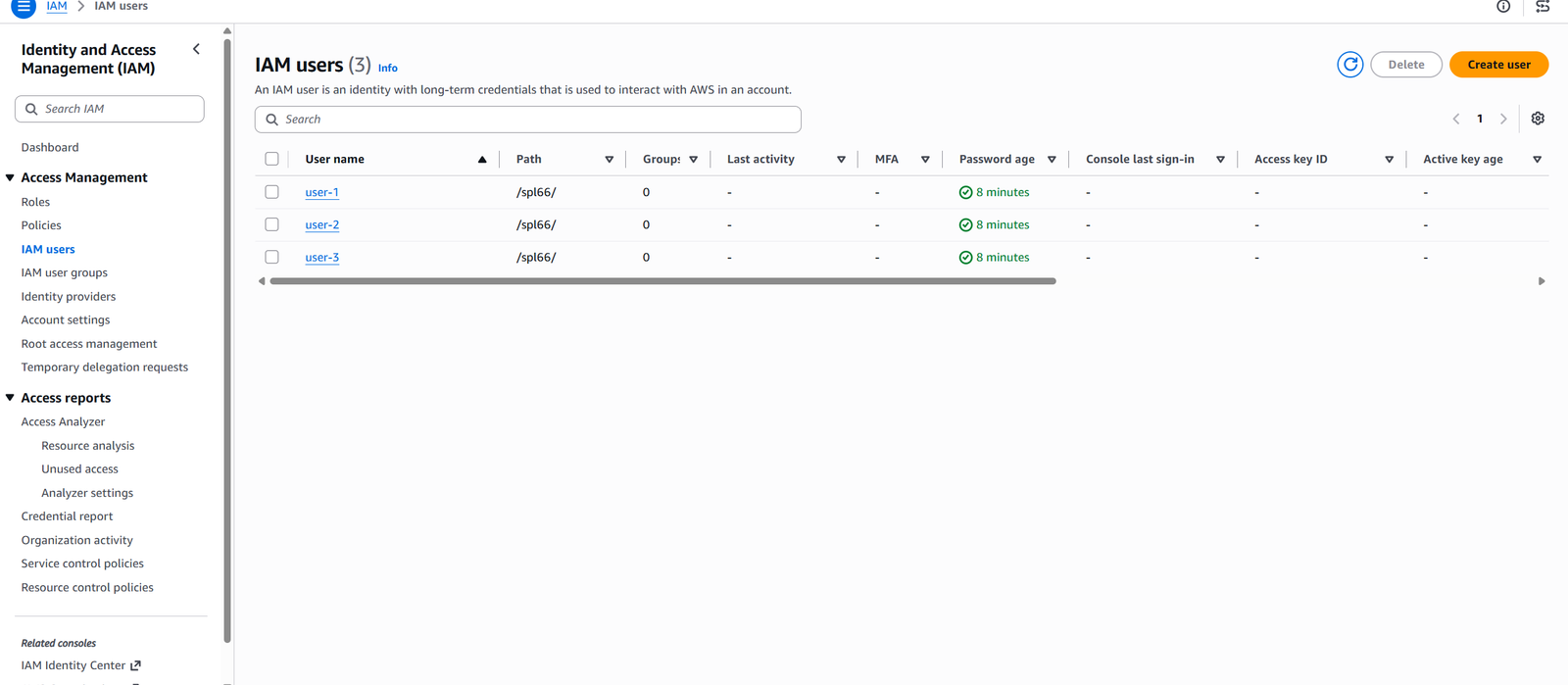
The three pre-created IAM users — none have permissions or group membership yet.
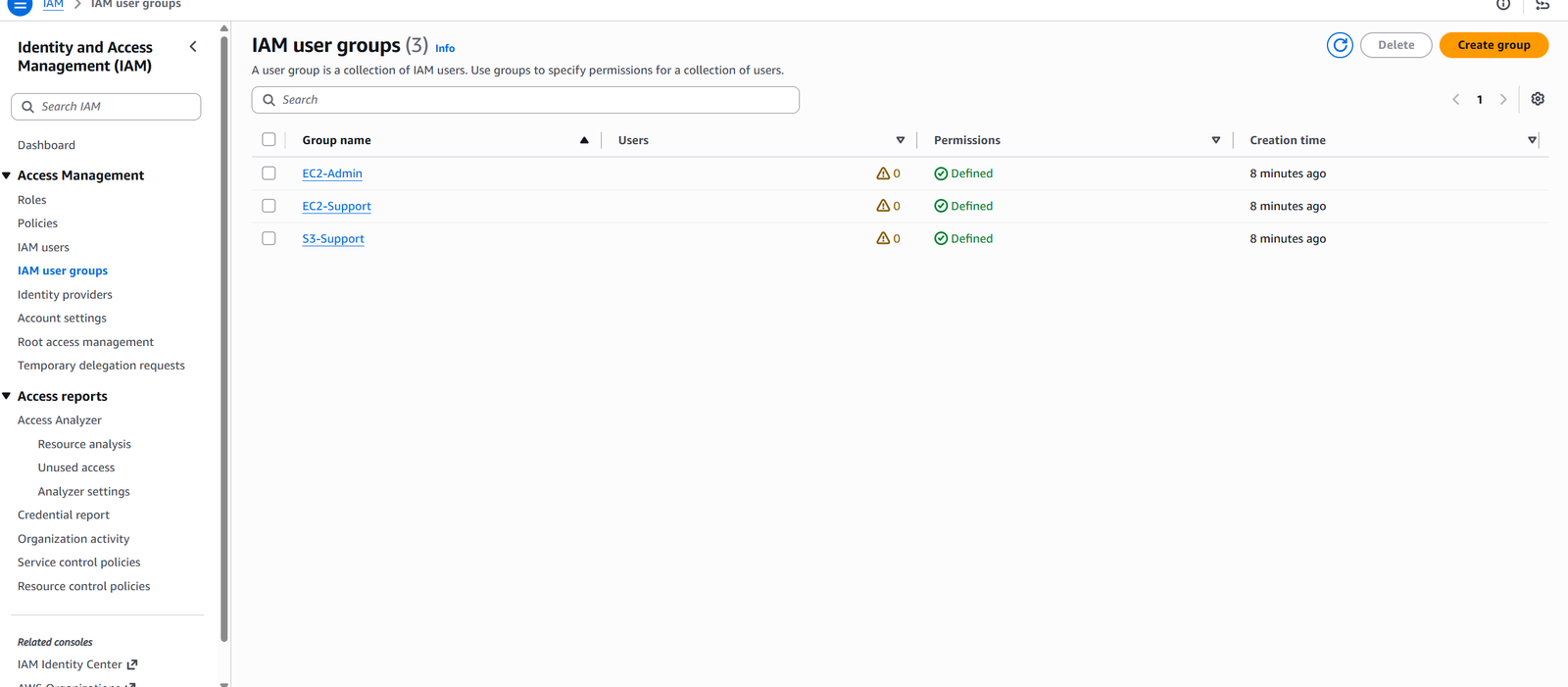
The three pre-created IAM groups, each destined for a different job function.
Opening user-1's summary page confirms the starting point: no permissions, no group membership, just a console password that lets the user sign in.
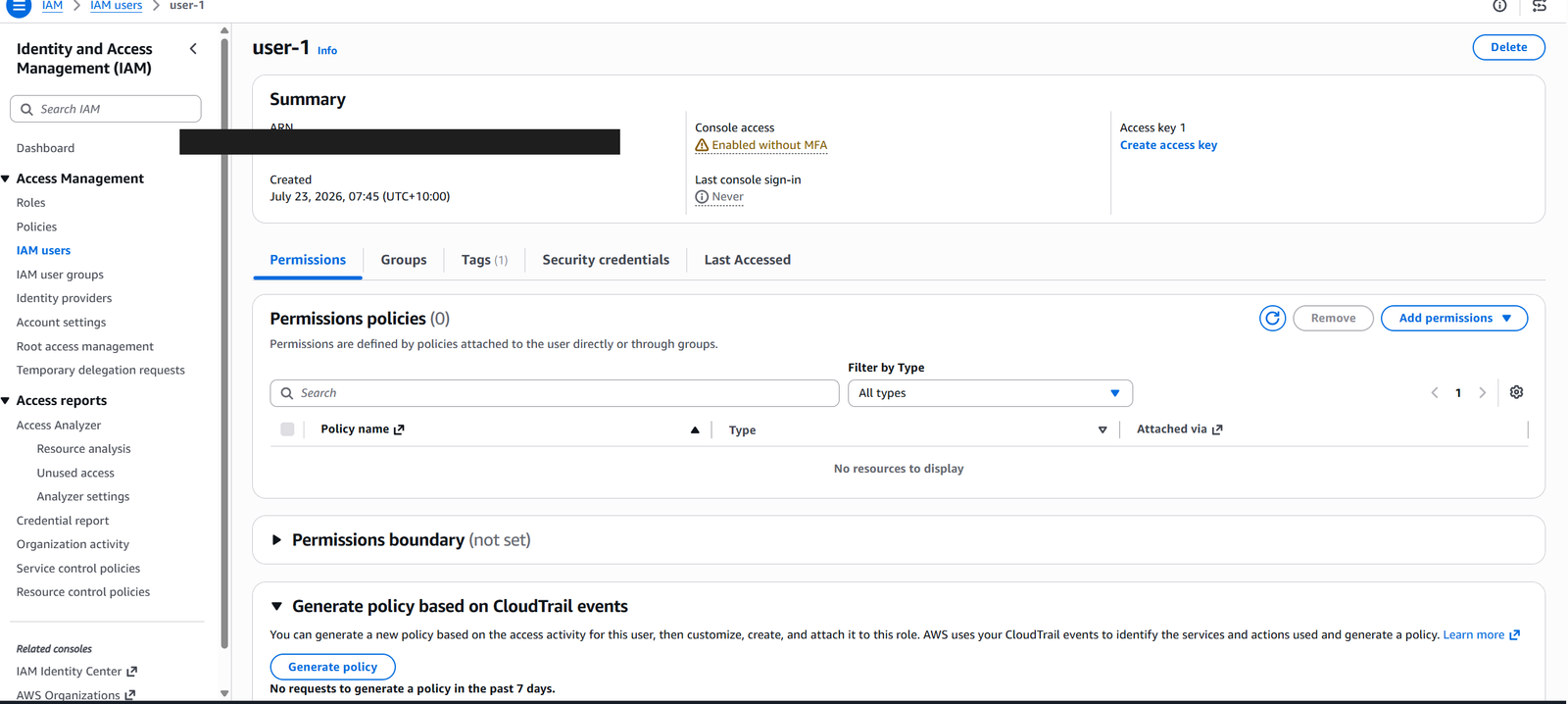
user-1's Permissions tab — empty. Every identity in AWS starts with nothing.
That empty state is the whole point of IAM. Every identity starts with nothing. Access has to be granted explicitly, never assumed.
Reading the Policies
Each group carries a different kind of policy, and the differences matter.
EC2-Support has the AWS managed policy AmazonEC2ReadOnlyAccess attached. Managed policies are pre-built by AWS (or by an admin) and can be attached to any number of users or groups — update the policy once, and every attached identity gets the change instantly.
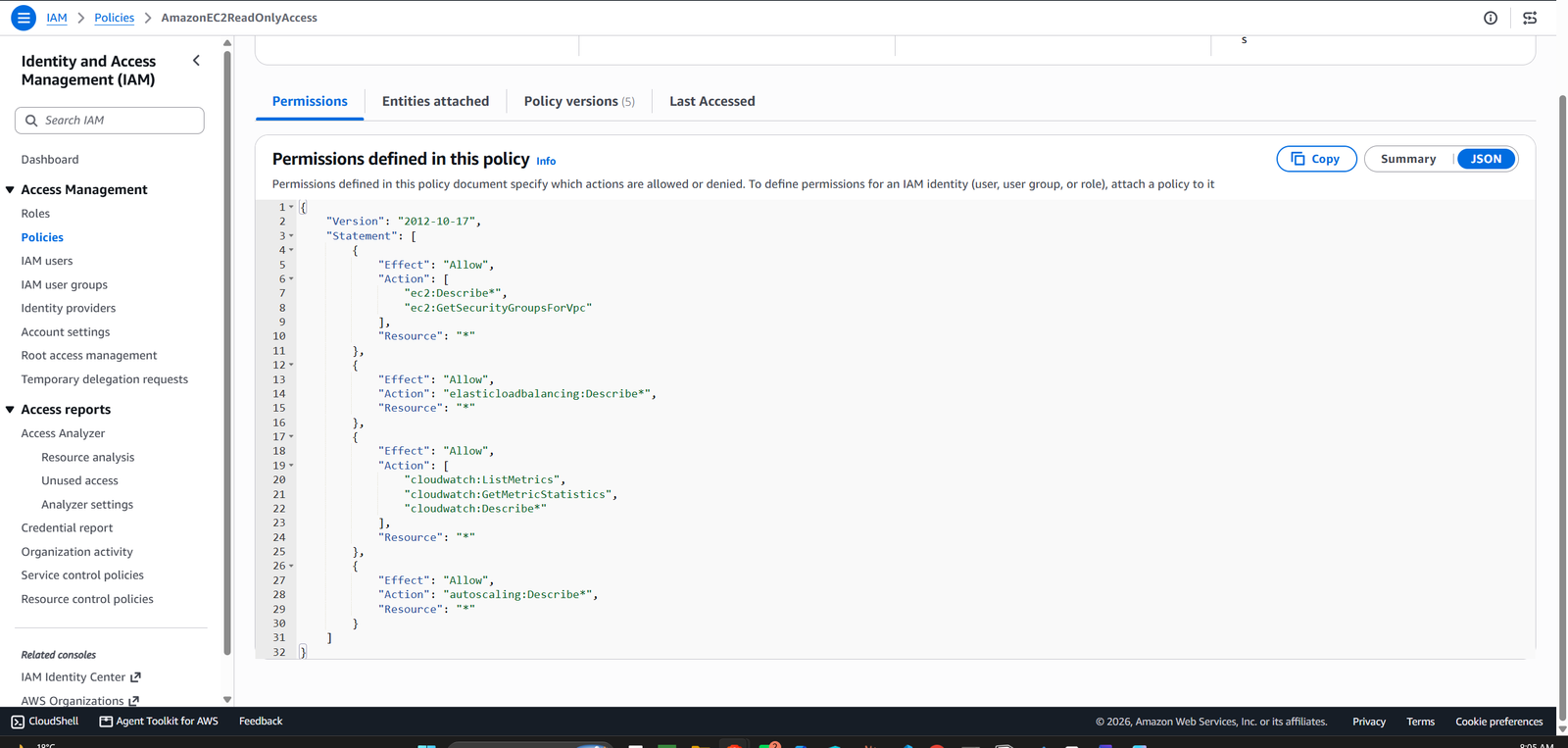
AmazonEC2ReadOnlyAccess — List and Describe actions across EC2, ELB, CloudWatch, and Auto Scaling.
S3-Support has AmazonS3ReadOnlyAccess, the same idea applied to S3: Get and List actions only, across every bucket.
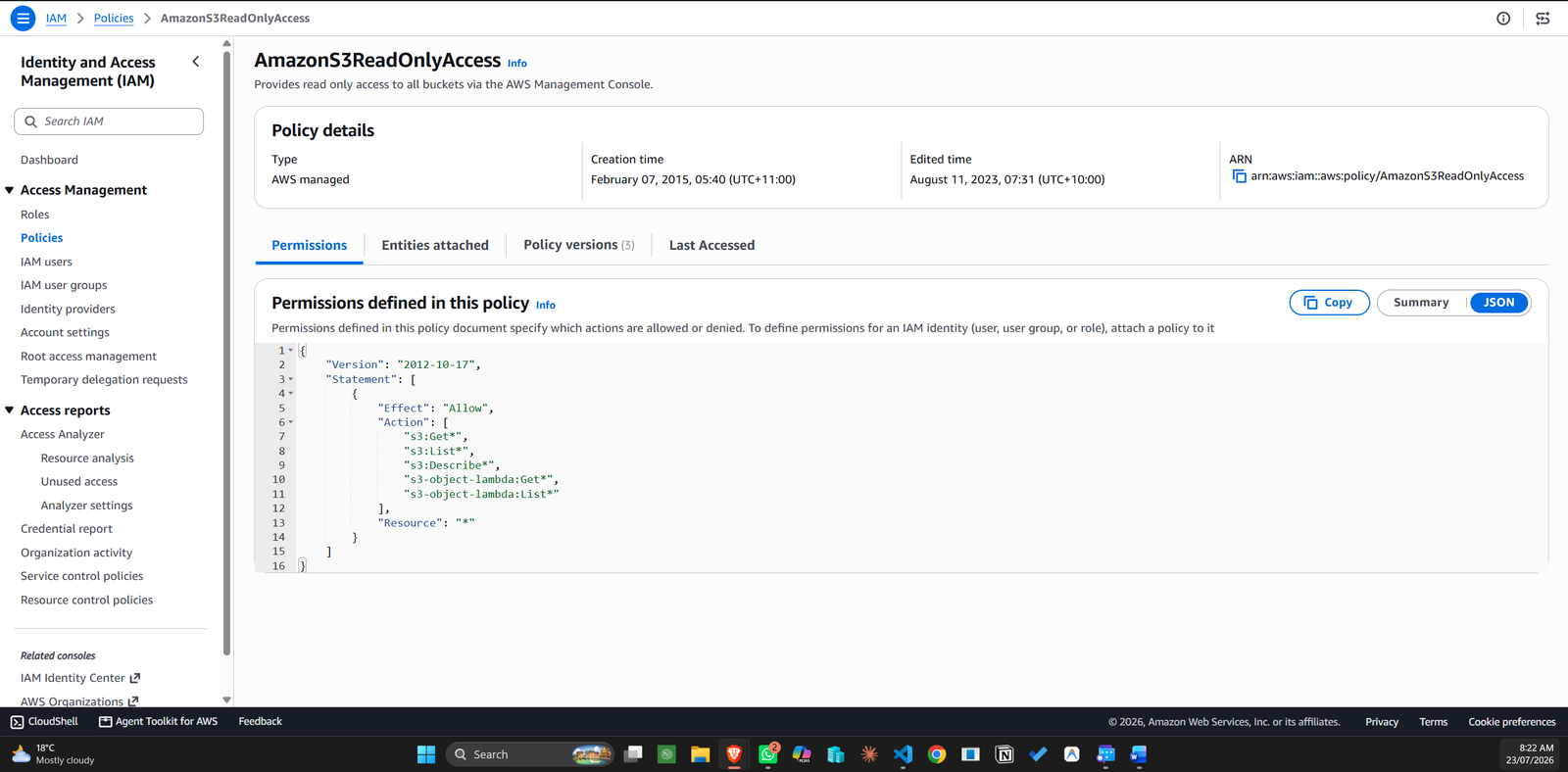
AmazonS3ReadOnlyAccess — Get and List actions on all S3 resources.
EC2-Admin is different — instead of a managed policy, it has an inline policy, one written and attached directly to this single group rather than shared across the account. Inline policies are the right tool when a permission set is genuinely one-off. This one grants describe, start, and stop actions on EC2 instances.
EC2-Admin's inline policy — Describe, Start, and Stop actions on EC2 instances.
Every IAM policy boils down to the same three questions: Effect — allow or deny. Action — which API calls this covers. Resource — which specific things this applies to, or * for everything. Once you can read those three fields, you can read any policy in AWS.
The Business Scenario
A small company is scaling its EC2 and S3 usage and needs to onboard three new hires, each into a role that matches a specific job function:
- user-1 joins as S3 support and needs read-only access to buckets.
- user-2 joins as EC2 support and needs read-only access to instances.
- user-3 joins as the EC2 administrator and needs the ability to start and stop instances.
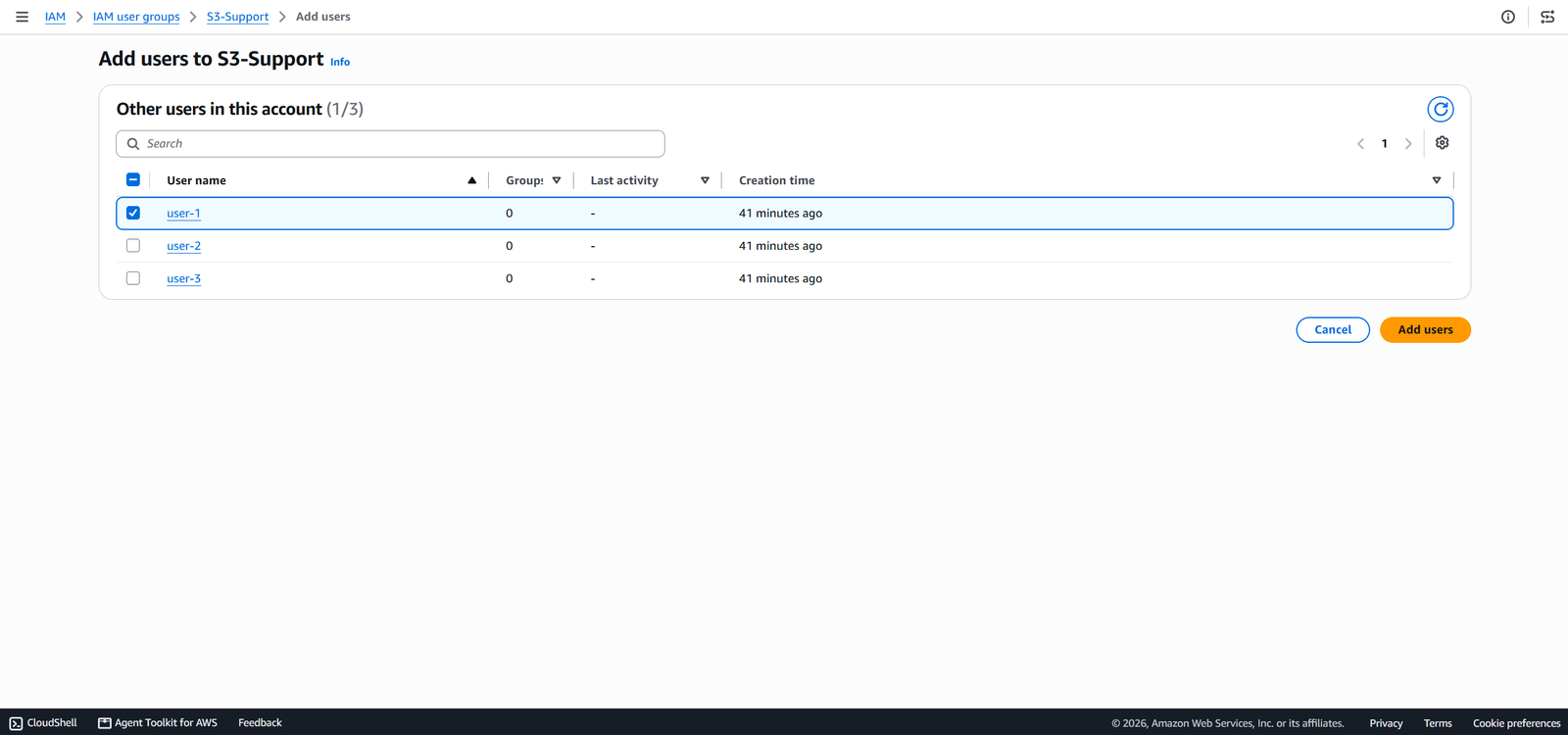
Rather than attaching policies to each user individually, the fix is one line of group membership per person — this is exactly why groups exist.
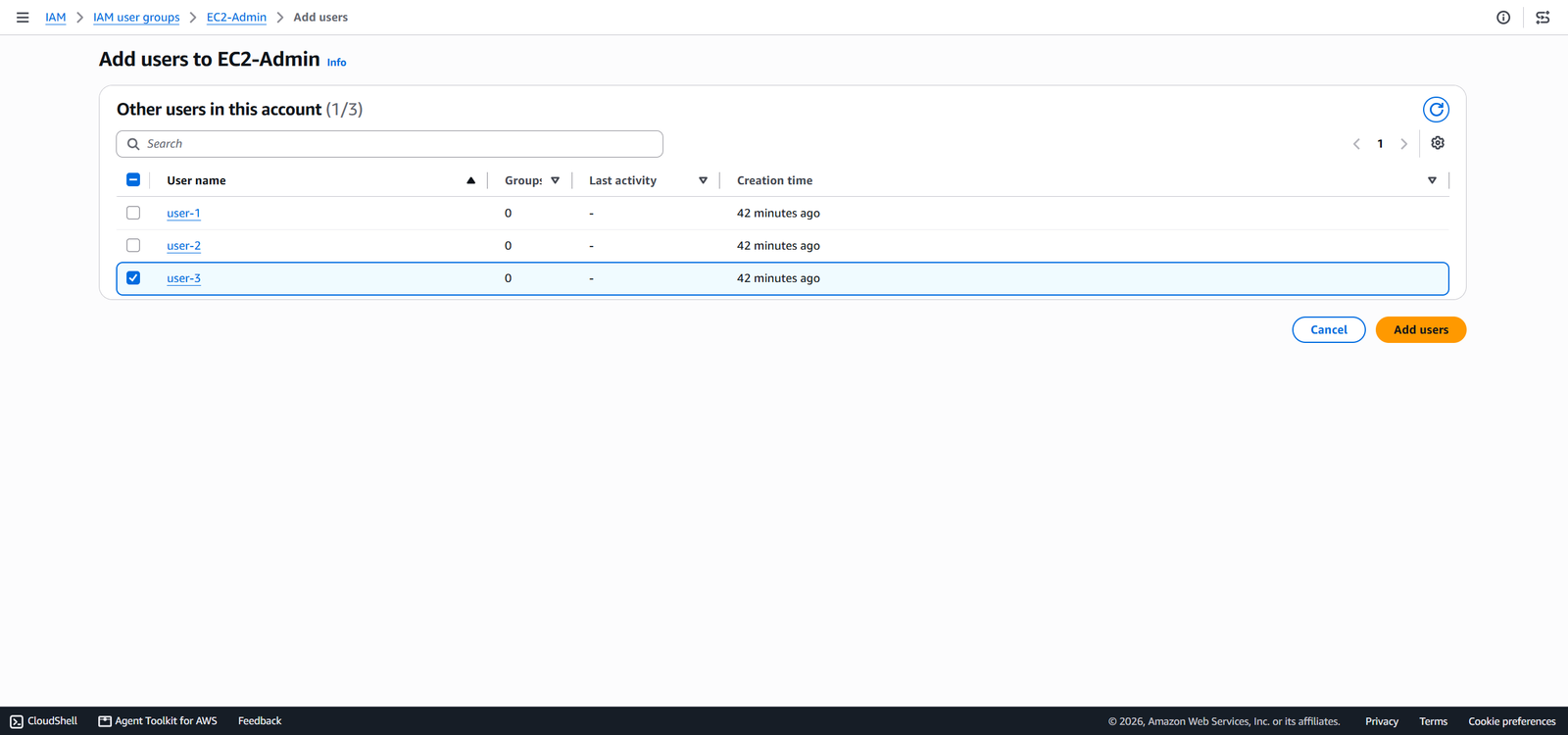
Adding a user to its matching IAM group via the Add users flow.
After adding all three users to their respective groups, the User groups page confirms it: every group now shows exactly one member.
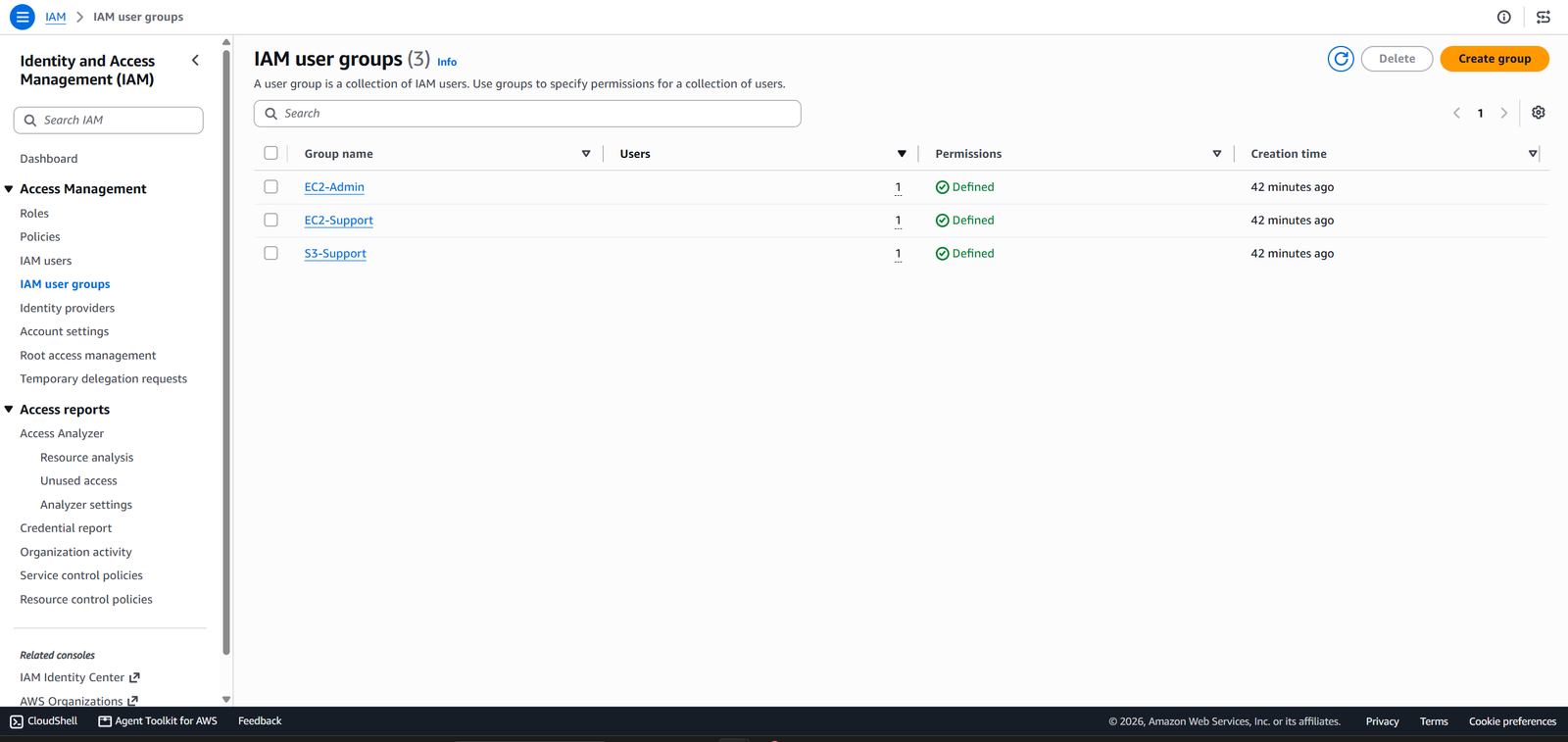
All three groups verified — one user each, matching the business scenario.
Proving It: Signing In as Each User
Reading a policy tells you what should happen. Signing in as the actual user is what tells you what does happen. IAM gives every account a dedicated sign-in URL for its IAM users, separate from the root login — copy that link, open an incognito window, and sign in as whichever identity you want to test.
user-1 — S3 Support
Signed in as user-1, opening S3 works exactly as expected: the bucket list loads and its contents are browsable.
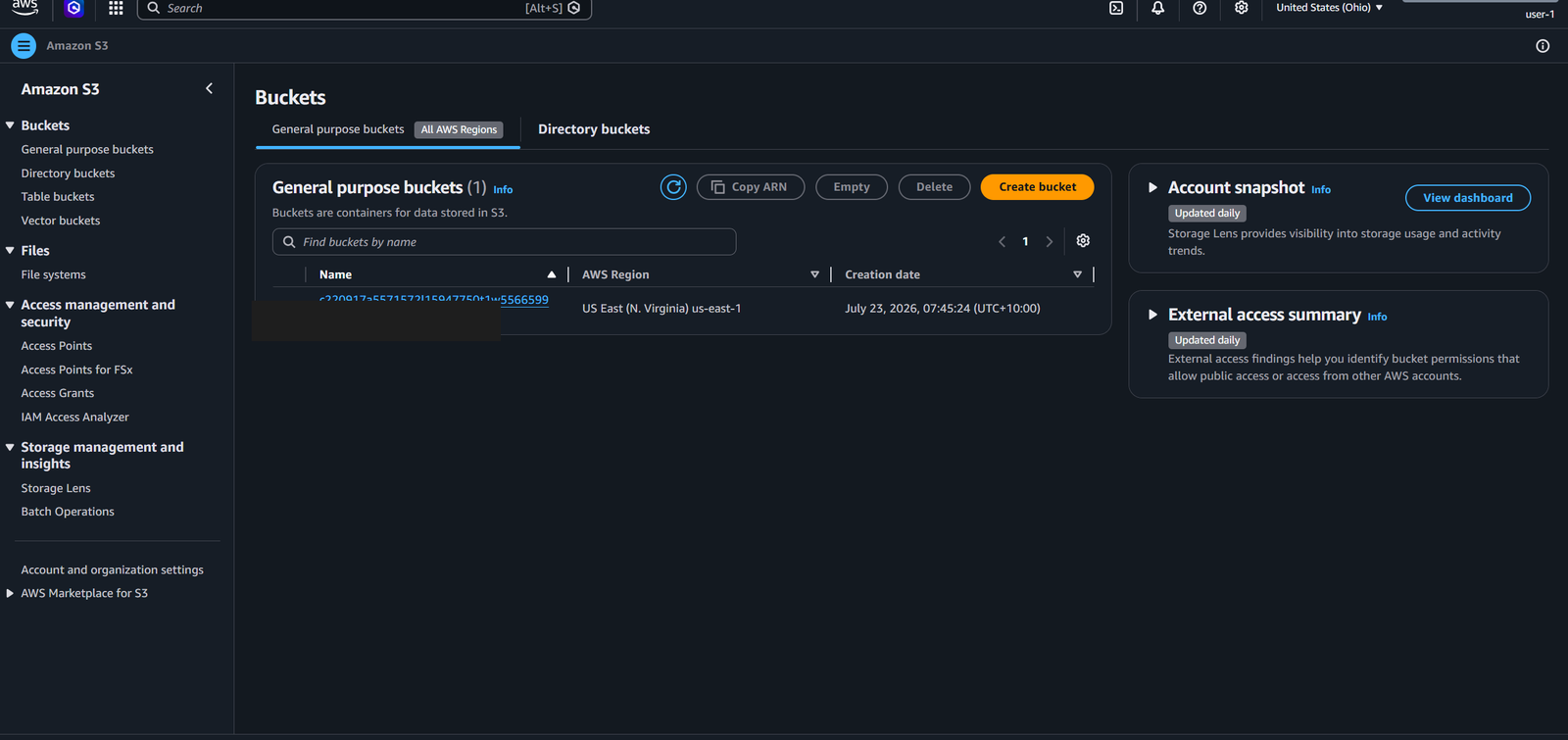
user-1 successfully viewing S3 buckets — S3-Support permissions in effect.
Switching to EC2 tells a different story — user-1 has zero EC2 permissions, and the console makes that explicit rather than just showing an empty screen.
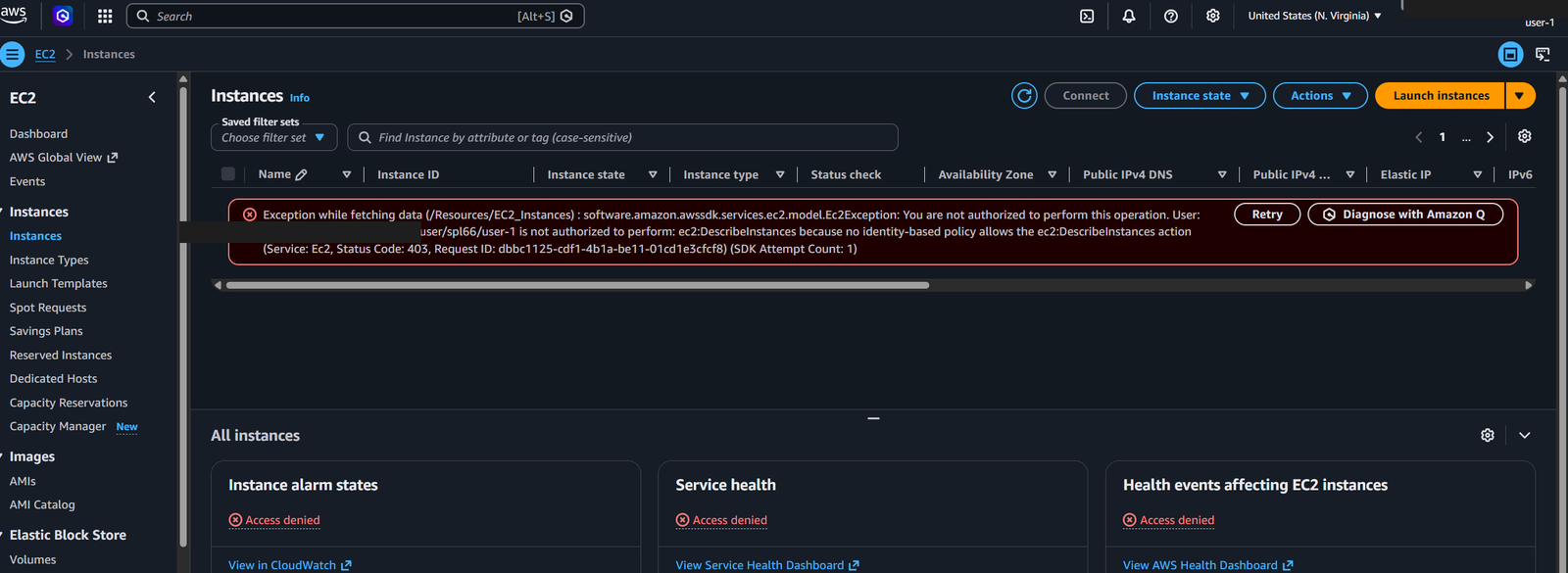
user-1 blocked from EC2 — "not authorized to perform this operation."
user-2 — EC2 Support
user-2 can see the EC2 instance without any trouble — that's the read half of read-only access working. Trying to stop that same instance is where the "read-only" part actually gets enforced: the console throws an explicit authorization error naming the exact denied action, ec2:StopInstances.
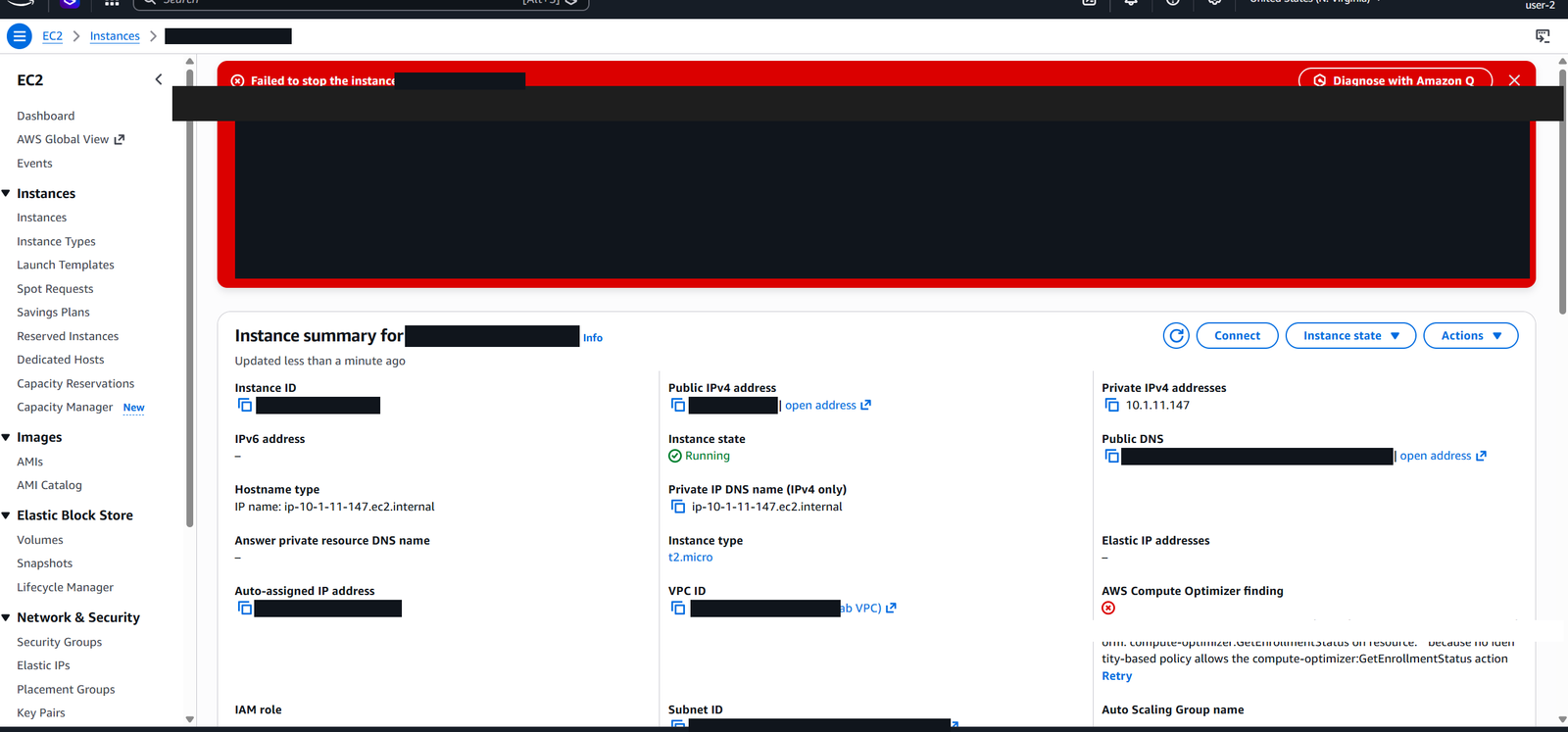
user-2 denied when attempting to stop an EC2 instance — read access works, write access does not.
That error message is worth pausing on. IAM doesn't fail silently or vaguely — it names the user, the action, and the resource it denied, which makes debugging permission issues in AWS dramatically easier than it sounds.
user-3 — EC2 Administrator
Finally, user-3 — the one identity in this whole lab actually holding write permissions on EC2. Same instance, same Stop action that just failed for user-2, and this time it succeeds. The instance state flips to Stopping.
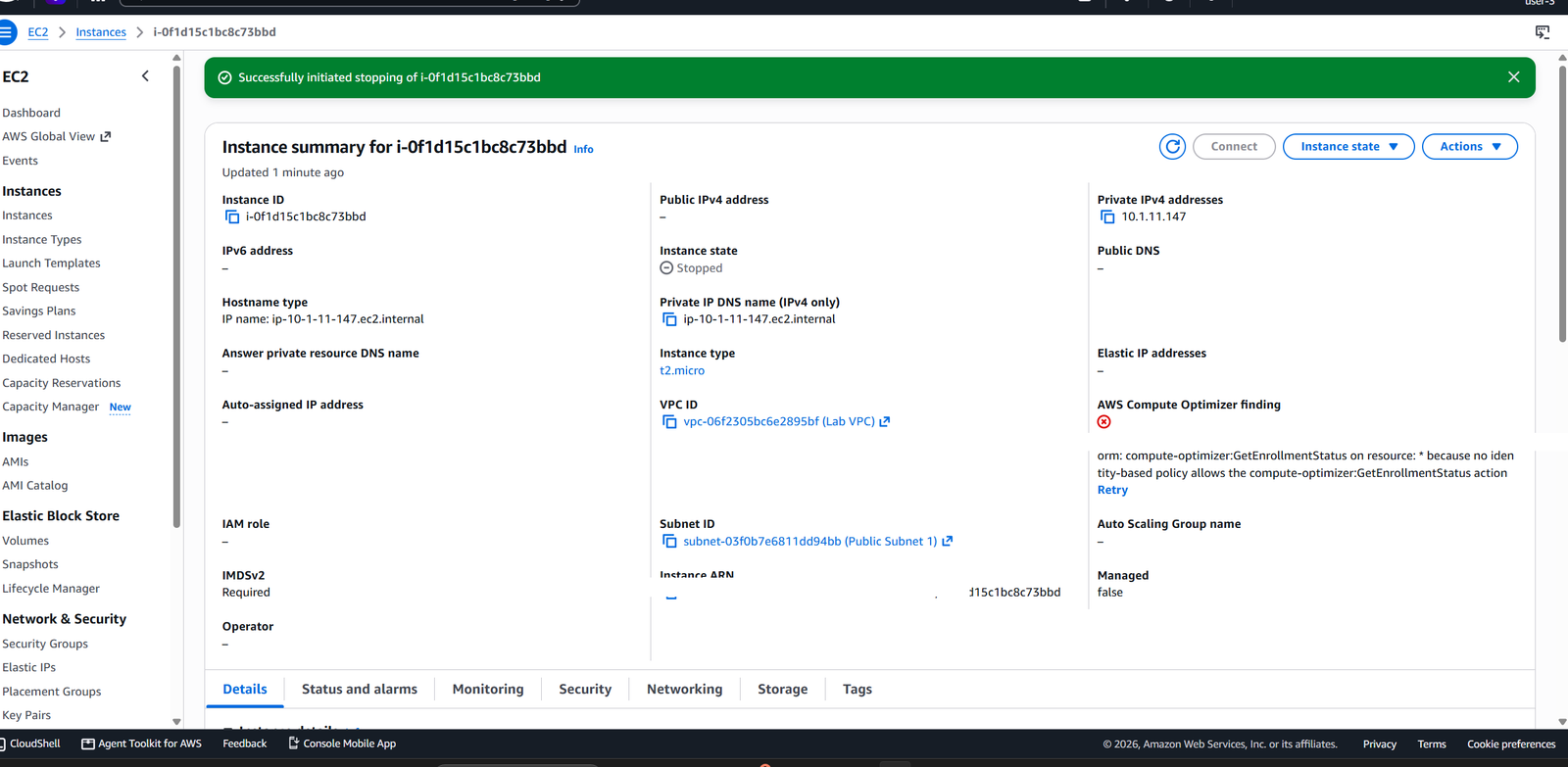
user-3 successfully stopping the EC2 instance — identical action, different policy, different outcome.
Same action, three different users, three different outcomes — entirely because of which group each one belonged to. That's IAM in a single sentence: identical requests, policy-determined results.
Why This Matters
This lab is deliberately small — three users, three groups, two services — but the pattern underneath it runs every real AWS account: define the permission set once as a policy, attach it to a group instead of an individual, and put users in the group that matches their actual job. Change someone's role, and you move them between groups rather than rewriting their permissions from scratch. Audit the account, and you're reading a handful of group policies instead of chasing down permissions scattered across dozens of individual users.
The other habit worth carrying forward from this lab is not trusting a policy just because you read it — sign in as the user it's attached to and try the action yourself. Policies are configuration; behaviour is the only thing that actually confirms it.
← All posts