Passwords, account addresses and server addresses in this report have been removed, covered or replaced with placeholders.
This is my complete IT infrastructure project report for StarTech Business College (STBC), a vocational training institution establishing its first campus in Sydney's CBD. Prepared on 10 November 2025, this project covers end-to-end deployment — from network design and hardware procurement through to Active Directory, file sharing, Group Policy, and Microsoft 365.
Prepared by: Mizanur Rahman | Date: 10 November 2025
Executive Summary
STBC required a fully operational, secure, and scalable IT environment to support its Sydney CBD campus from day one. The scope included:
- Network infrastructure with wired and wireless connectivity for 70+ users
- Windows Server 2022 Domain Controller (
STBC-DC01) on theSTBC.LOCALdomain - Active Directory with Organisational Units, security groups, and user accounts
- Department-level file sharing with NTFS permissions
- Group Policy for password and account lockout enforcement
- Microsoft 365 Business Premium for all staff — with shared mailboxes, distribution groups, and MFA
Total initial investment: $160,995.72 AUD
Ongoing monthly cost: $569.60/month
Project Scope
The project was scoped across five key deliverables:
- Network Design & Hardware — topology, cabling, switching, wireless, CCTV
- Server & Active Directory — domain controller, OU structure, user accounts, security groups
- File Services — shared folders with role-based NTFS access control
- Group Policy — password complexity, account lockout, and security baselines
- Microsoft 365 — user provisioning, licensing, shared mailboxes, distribution groups, MFA
Hardware & Software — Products and Costs
All hardware was selected for reliability, scalability, and value. The full procurement list:
| Item | Qty | Unit Price | Total |
|---|---|---|---|
| HPE ProLiant ML350 Gen11 Server | 1 | $8,500.00 | $8,500.00 |
| Windows Server 2022 Standard | 1 | $1,500.00 | $1,500.00 |
| Cisco RV340 Dual-WAN Router | 1 | $750.00 | $750.00 |
| Ubiquiti 48-Port PoE Core Switch | 2 | $1,250.00 | $2,500.00 |
| Ubiquiti UniFi U6+ Access Points | 3 | $250.00 | $750.00 |
| Staff Desktop PCs | 8 | $1,400.00 | $11,200.00 |
| Classroom Desktop PCs | 60 | $1,200.00 | $72,000.00 |
| Monitors (24") | 70 | $380.00 | $26,600.00 |
| Total Initial Investment | $160,995.72 | ||
Network Documentation
The network uses an extended star topology with Cat6a cabling throughout the campus. The NBN 100/40 internet connection is the primary WAN link. A Cisco RV340 dual-WAN router provides failover capability and handles site-to-site VPN. Traffic flows from the router through a hardware firewall into the Ubiquiti 48-port PoE core switch, which distributes to all endpoints.
Three Ubiquiti UniFi U6+ access points provide wireless coverage: AP #1 at Reception, AP #2 in Classroom A, AP #3 in Classroom B. All APs are powered via PoE — no separate power adapters required.
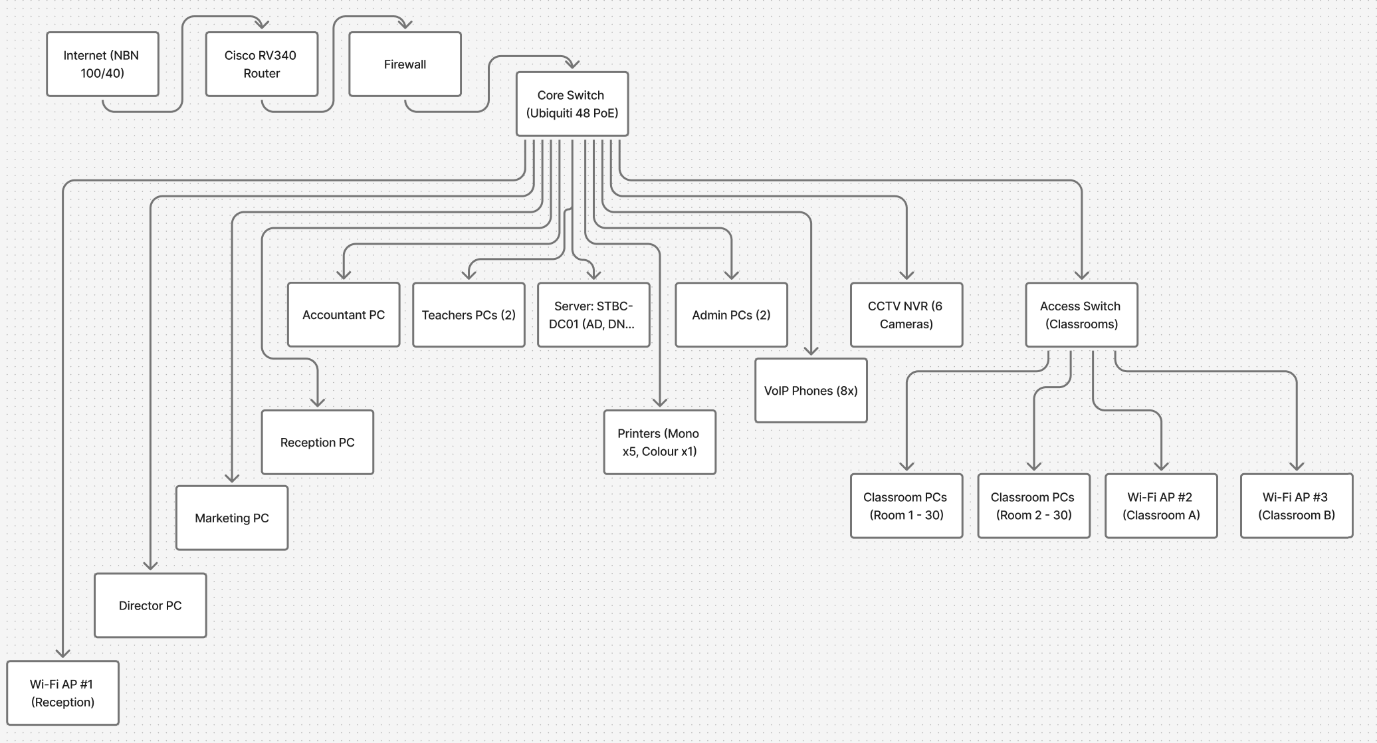
Full network topology — NBN → Cisco RV340 → Firewall → Ubiquiti 48-port PoE core switch → all endpoints. Extended star topology with Cat6a cabling throughout.
Network summary:
- Topology: Extended star
- Cabling: Cat6a throughout all classrooms and offices
- Router: Cisco RV340 — dual-WAN failover, site-to-site VPN
- Core Switch: 2× Ubiquiti 48-port PoE (classrooms + admin)
- Wireless: 3× Ubiquiti UniFi U6+ APs — Reception, Classroom A, Classroom B
- CCTV: NVR with 6 cameras covering all common areas
- VoIP: 8× IP phones for reception, admin, and teacher desks
- Server: STBC-DC01 on domain STBC.LOCAL
Active Directory — OU Structure
The server STBC-DC01 was promoted to Domain Controller for STBC.LOCAL. Roles installed: Active Directory Domain Services (AD DS), DNS, DHCP, and File and Storage Services.
I built the OU structure to mirror the college's departments — starting with a root OU named STBC under the domain, then a sub-OU for each department inside it. "Protect container from accidental deletion" was checked on every OU.
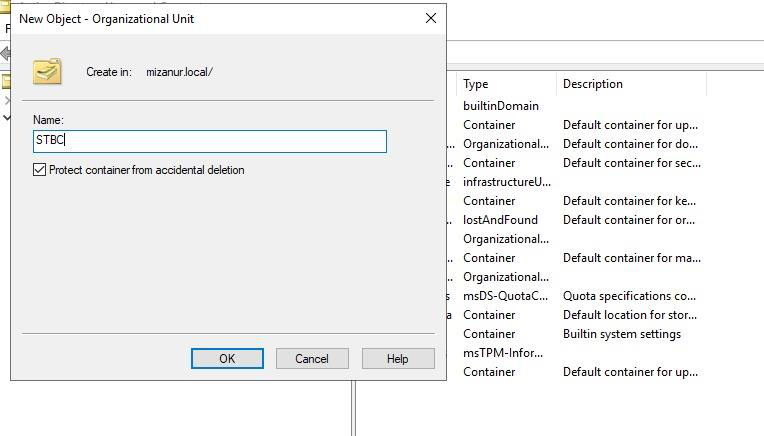
Creating the root STBC Organisational Unit in Active Directory Users and Computers — protection from accidental deletion always enabled
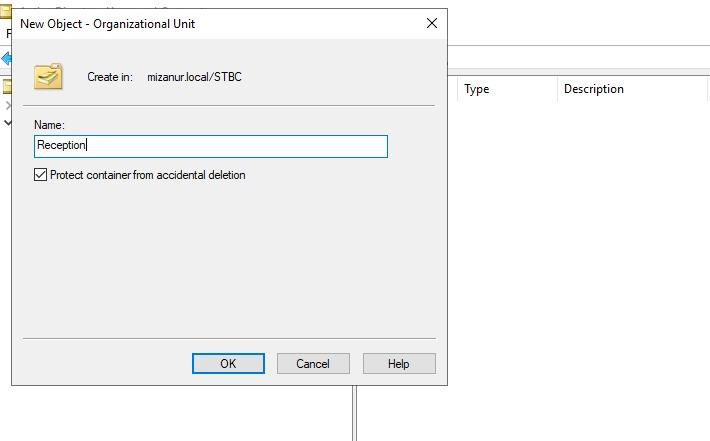
Creating the Reception sub-OU inside the STBC root OU — each department gets its own container
After creating all seven department OUs, the full structure:
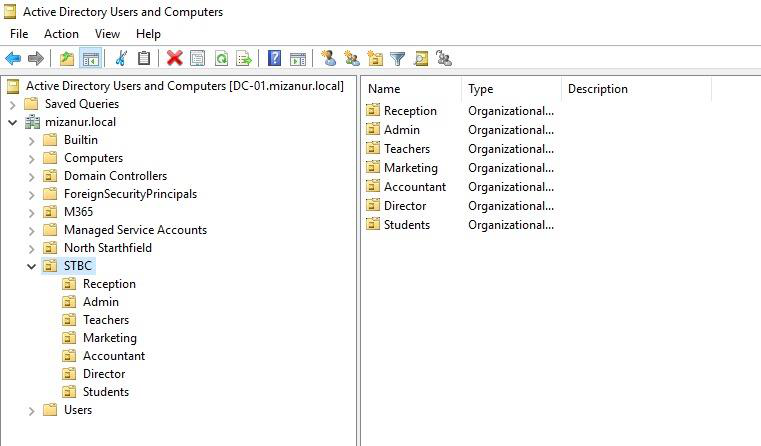
Completed OU structure — seven department OUs under STBC: Reception, Admin, Teachers, Marketing, Accountant, Director, Students
Active Directory — User Accounts & Security Groups
Every staff member received a domain user account placed in their department OU. Security groups (e.g. Admin-Grp, Teachers-Grp, Director-Grp) were created for each department — permissions and policies are always applied to the group, never to individual accounts. This means a single group membership change propagates access across the entire system.
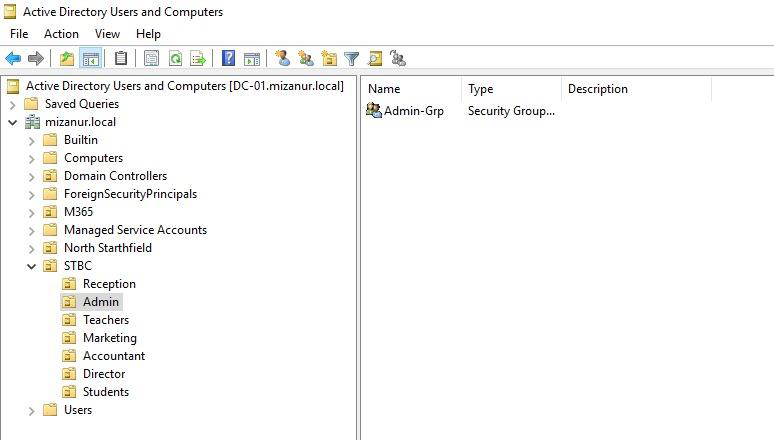
Admin OU selected in AD Users and Computers — the Admin-Grp security group is used to assign all permissions for this department
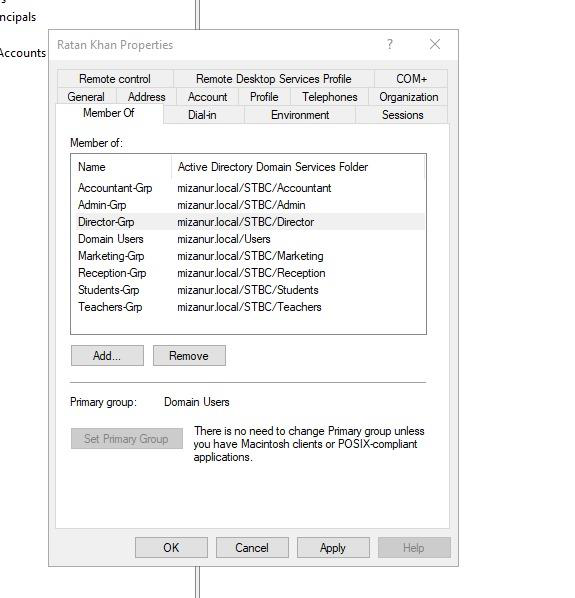
Ratan Khan's user account — member of Director-Grp, granting access to the Director shared folder and relevant Group Policies
All staff accounts were created with a temporary initial password. Users are required to change their password at first login.
File Server — Shared Folders & NTFS Permissions
The domain controller doubles as the file server. A shared root folder STBC DATA was created at C:STBC DATASTBC with a subfolder for every department. Each subfolder is shared only with its matching security group using least-privilege NTFS permissions — one group cannot see another group's folder.
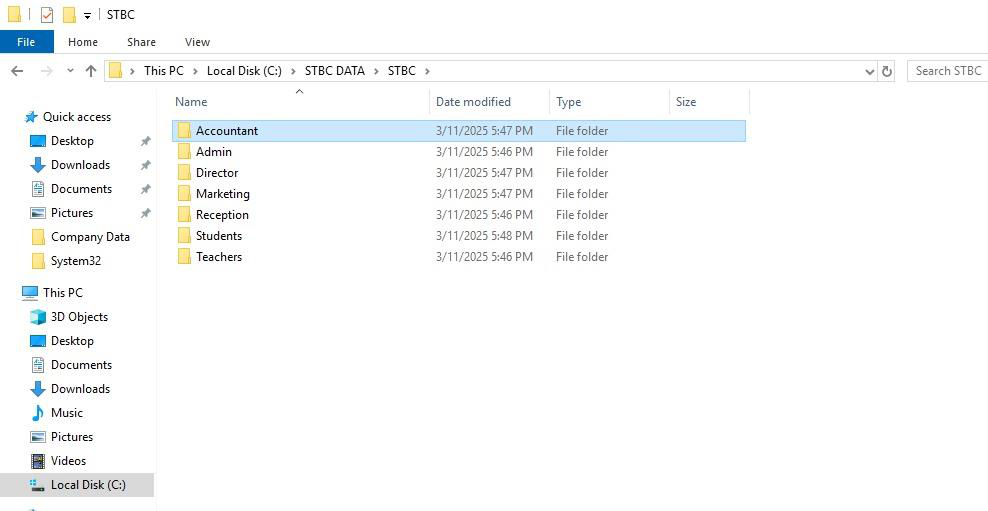
The STBC shared data structure — one folder per department under C:STBC DATASTBC, all managed via NTFS permissions
Permission assignments:
- Reception-Grp → Read/Write to Reception folder only
- Admin-Grp → Read/Write to Admin folder; Director-Grp also has access
- Teachers-Grp → Read/Write to Teachers folder only
- Marketing-Grp → Read/Write to Marketing folder only
- Accountant-Grp → Read/Write to Accountant folder only
- Director-Grp → Read/Write access to all department folders
- Students-Grp → Read/Write to Students folder only
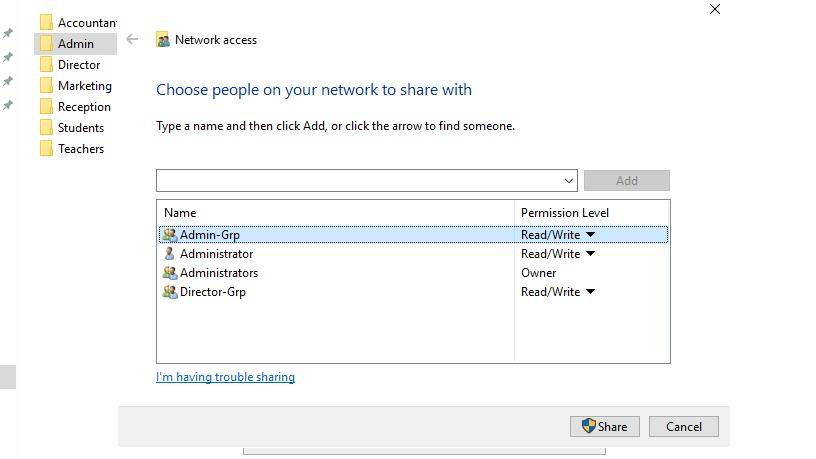
Admin folder share permissions — Admin-Grp and Director-Grp listed with Read/Write; all other groups are explicitly denied
Access was verified end-to-end by connecting via UNC path from a domain-joined client machine:
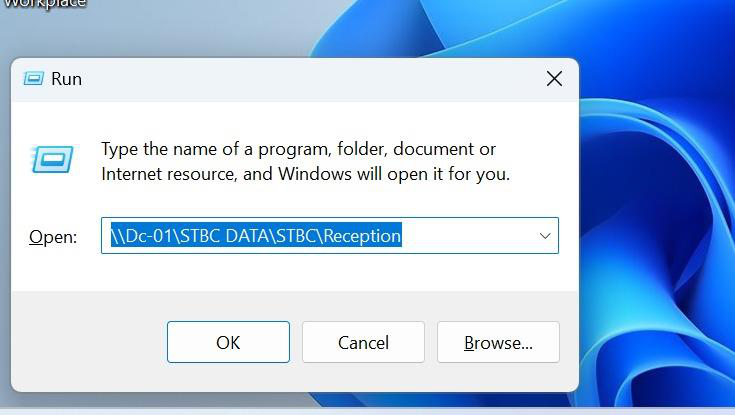
Connecting to Dc-01STBC DATASTBCReception from the Run dialog — verifying a Reception user can reach their folder
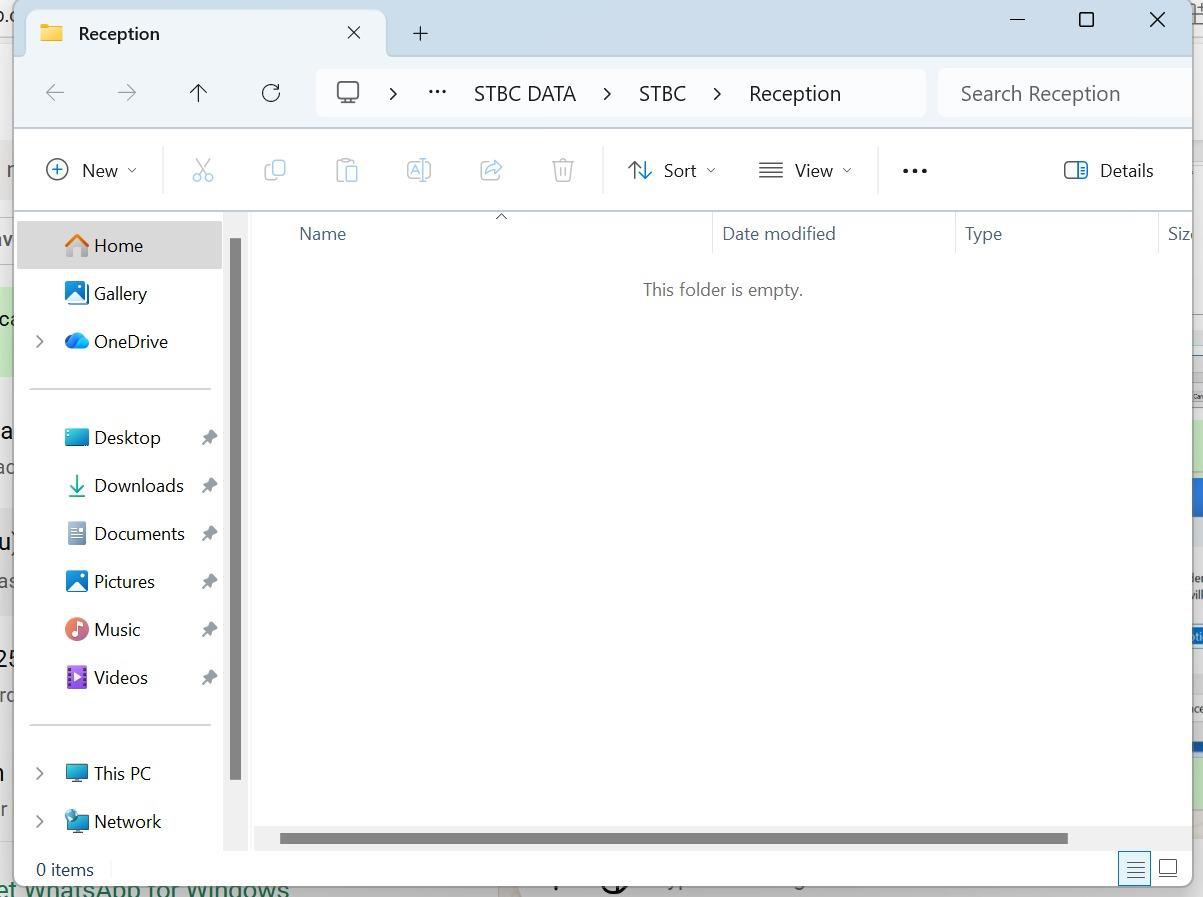
Reception folder successfully opened — folder is empty and ready for use, access confirmed for Reception-Grp members
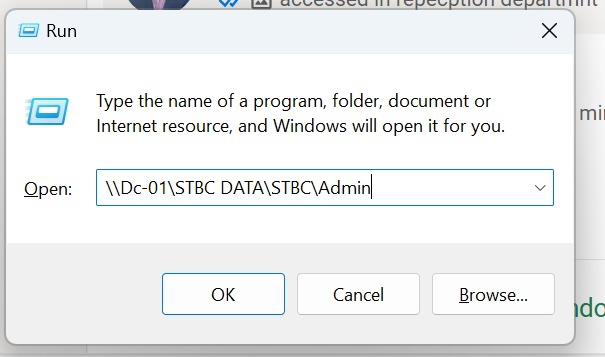
Now connecting to Dc-01STBC DATASTBCAdmin — the next step is to confirm that a non-Admin user is blocked
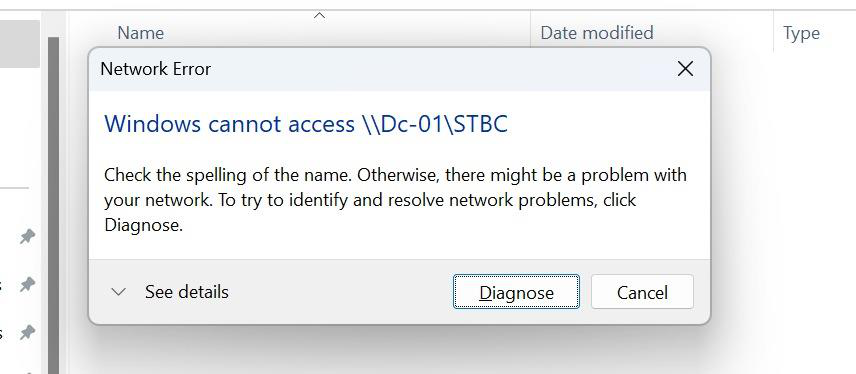
Access denied — a user outside Admin-Grp and Director-Grp cannot open the Admin folder. NTFS permissions are working correctly.
Group Policy — Password Policy
Security policies were enforced using Group Policy Objects (GPOs) linked to the STBC OU. The password policy settings:
- Minimum password length: 8 characters
- Password complexity: Enabled — uppercase, lowercase, digit, and symbol all required
- Maximum password age: 20 days
- Password history: 24 passwords remembered (prevents reuse)
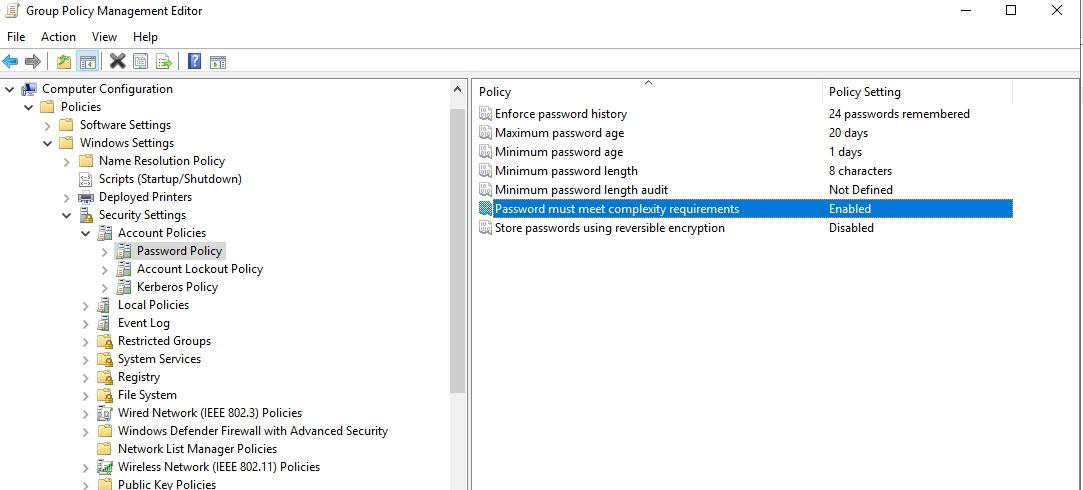
Password Policy GPO — complexity enabled, 24-password history, 20-day maximum age, 8-character minimum length
To verify the policy was applied, a simple password change was attempted for Rina Smith's account:
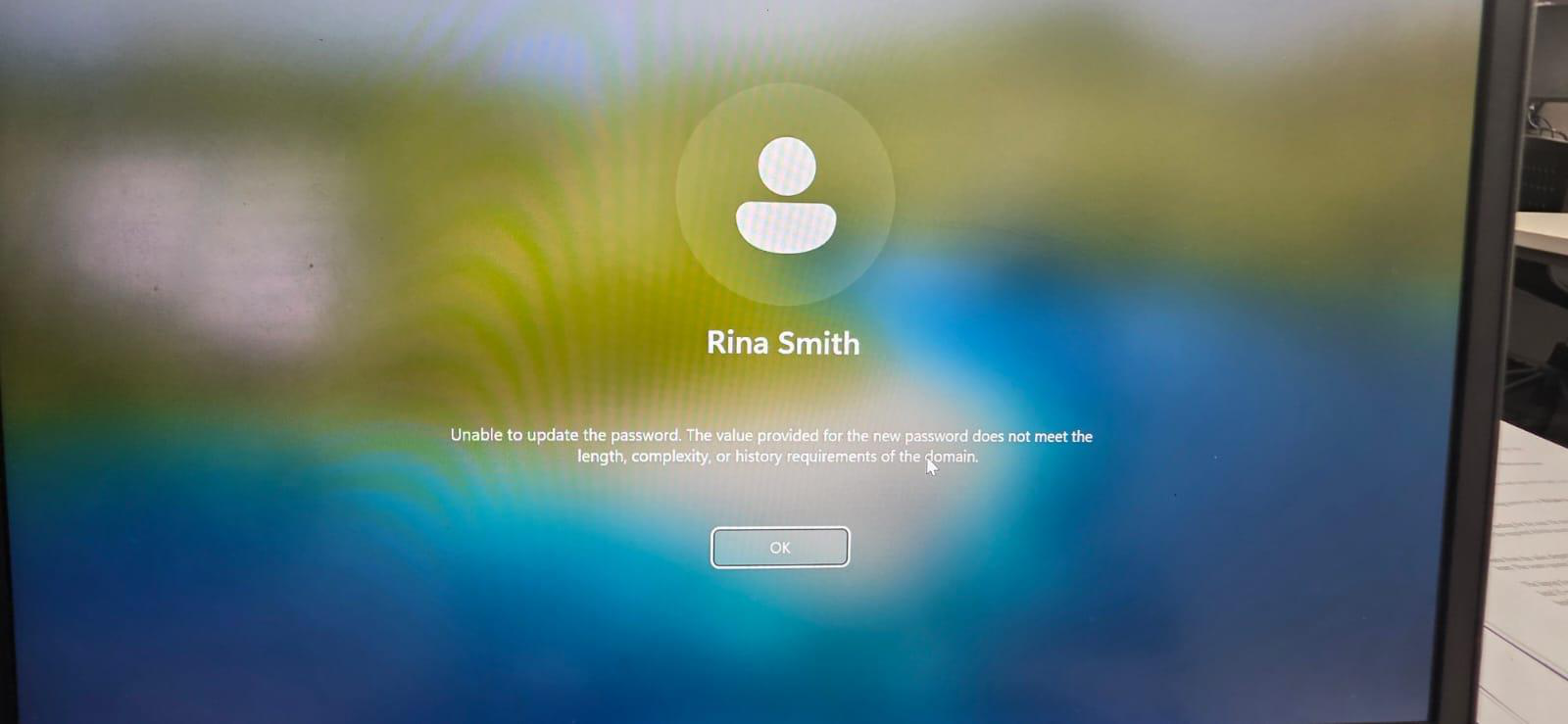
Rina Smith's password change rejected — "Unable to update the password. The value provided for the new password does not meet the length, complexity, or history requirements." Policy confirmed working.
Group Policy — Account Lockout Policy
The account lockout policy defends against brute-force login attempts:
- Account lockout threshold: 1 invalid logon attempt
- Account lockout duration: 10 minutes
- Reset account lockout counter after: 10 minutes
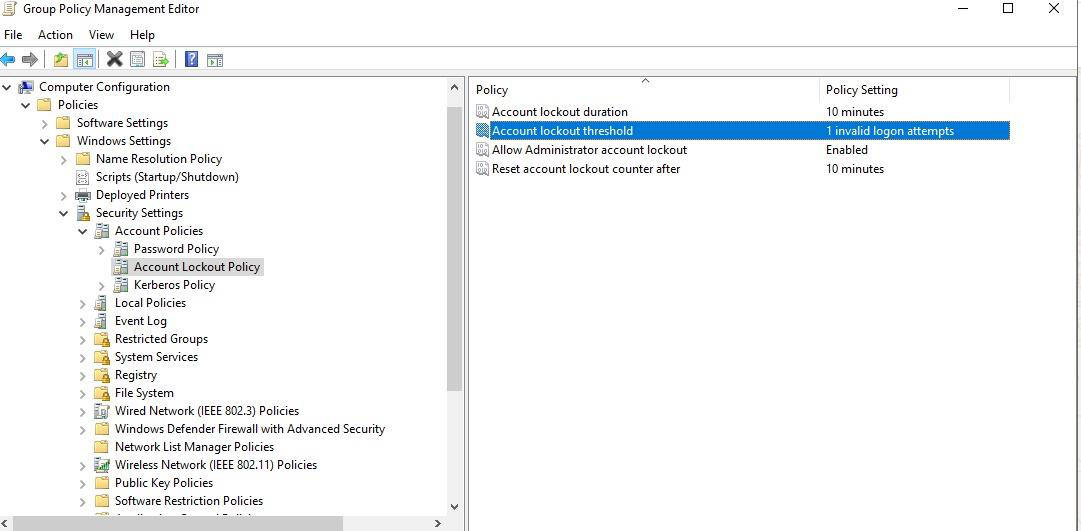
Account Lockout Policy GPO — 1 invalid logon attempt triggers a 10-minute lockout, counter resets after 10 minutes
Verified by deliberately failing a login for the Rina Smith test account:
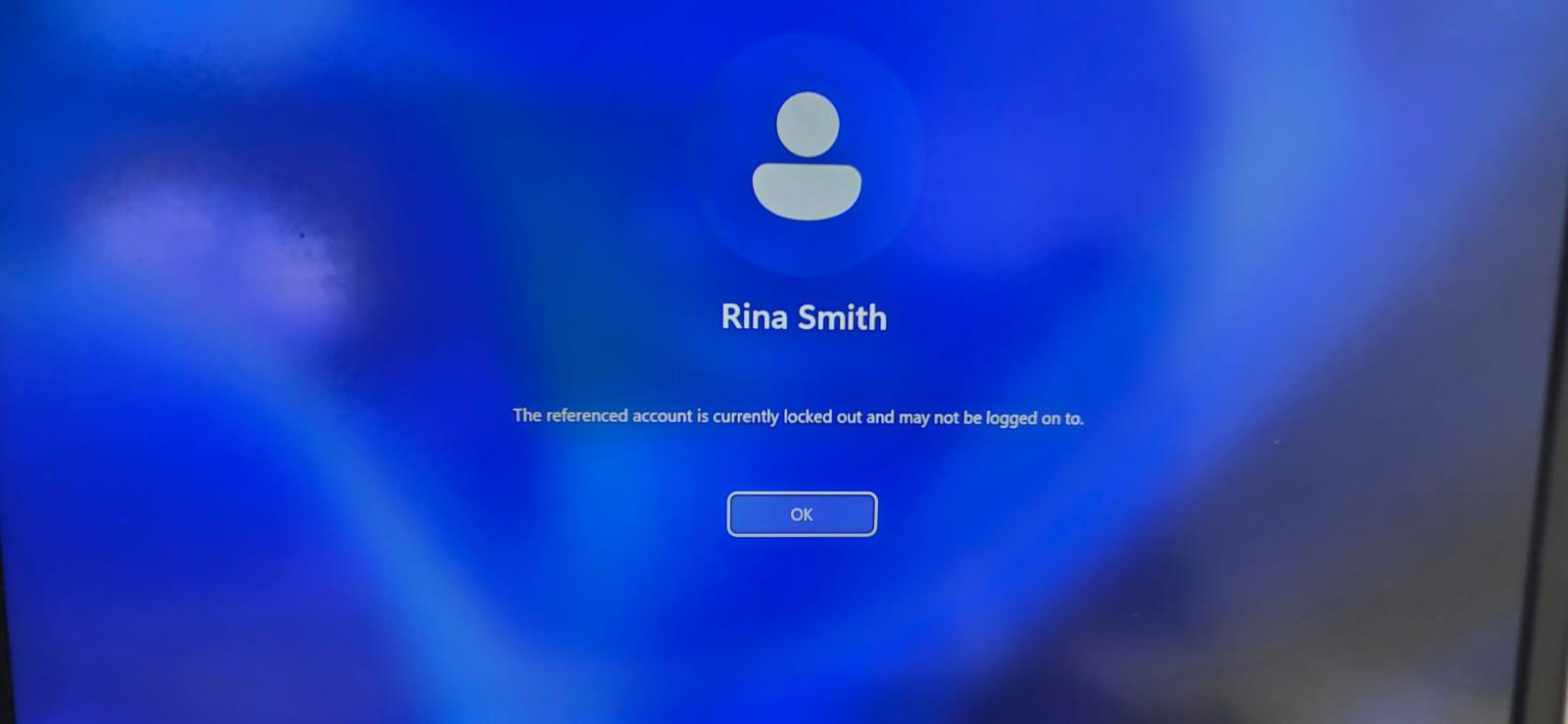
Account lockout confirmed — Rina Smith's account locked after 1 failed attempt. Lockout policy is working as configured.
Microsoft 365 — User Provisioning
All staff accounts were provisioned in Microsoft 365 Business Premium using the tenant domain example.com. Users were added via the M365 admin centre — first via "Add multiple users" for bulk onboarding, then individually verified.
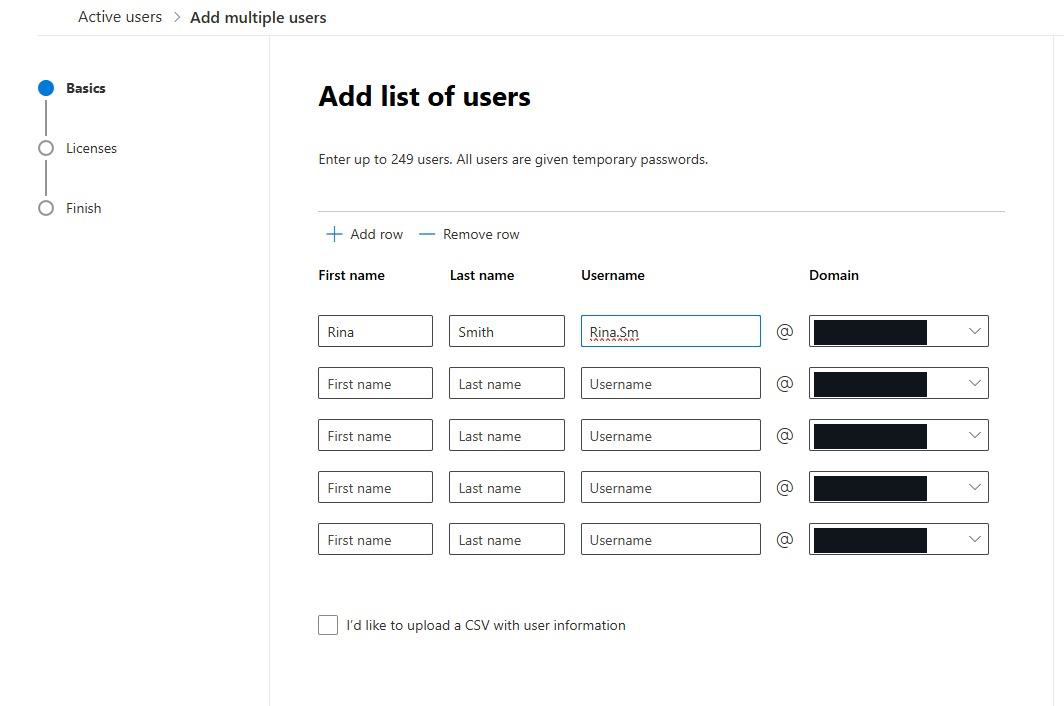
Bulk user creation in M365 — "Add list of users" interface with Rina Smith (Rina.Sm) being entered as the first user on the example.com domain
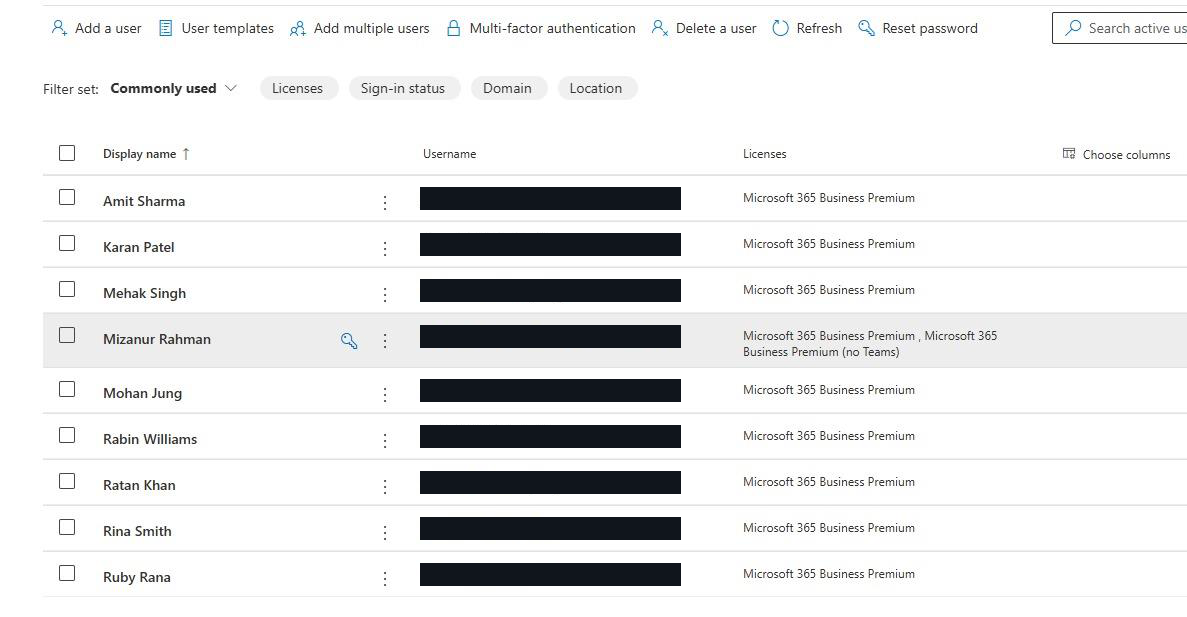
All staff users provisioned in M365 admin centre — each assigned a Microsoft 365 Business Premium licence
Microsoft 365 — Shared Mailboxes
Shared mailboxes allow multiple staff to send and receive from a single address without a dedicated licence. Two shared mailboxes were configured:
admin-sm@example.com— Admin team mailbox (Amit Sharma, Karan Patel, Ratan Khan added as members)teachers-sm@example.com— Teachers team mailbox
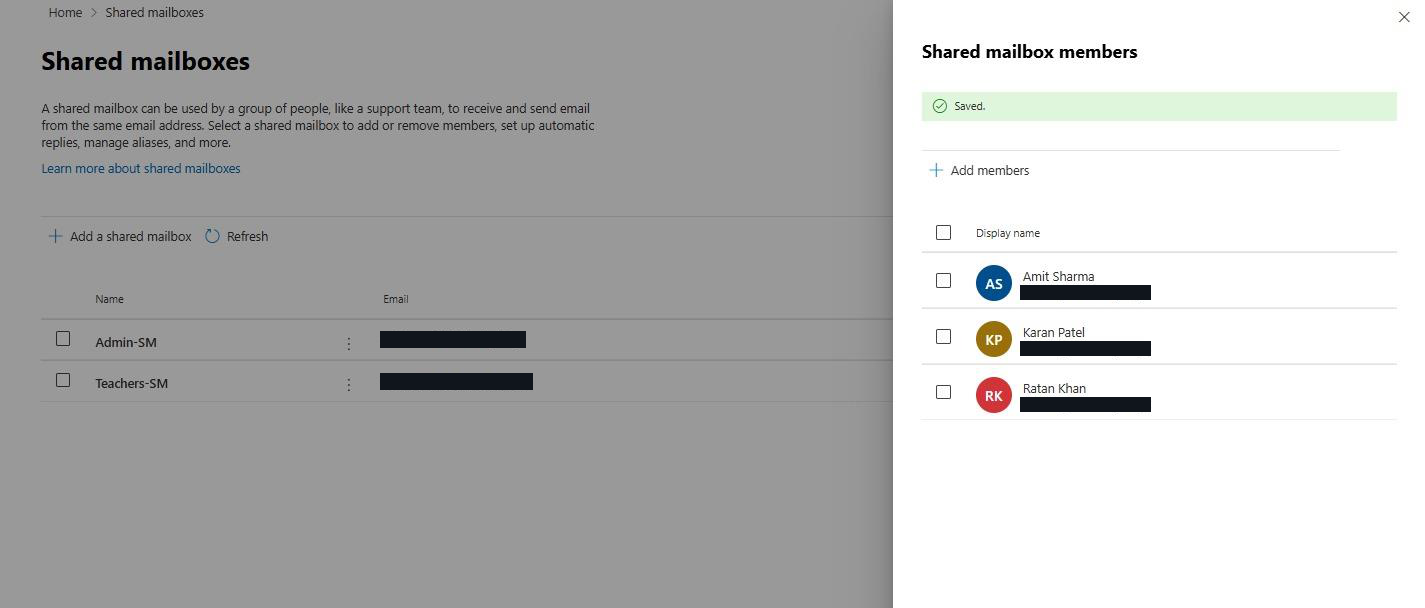
Shared mailboxes Admin-SM and Teachers-SM created — Amit Sharma, Karan Patel, and Ratan Khan added as Admin-SM members
The shared mailbox was tested by sending an email to admin-sm@example.com from Rabin Williams' account:
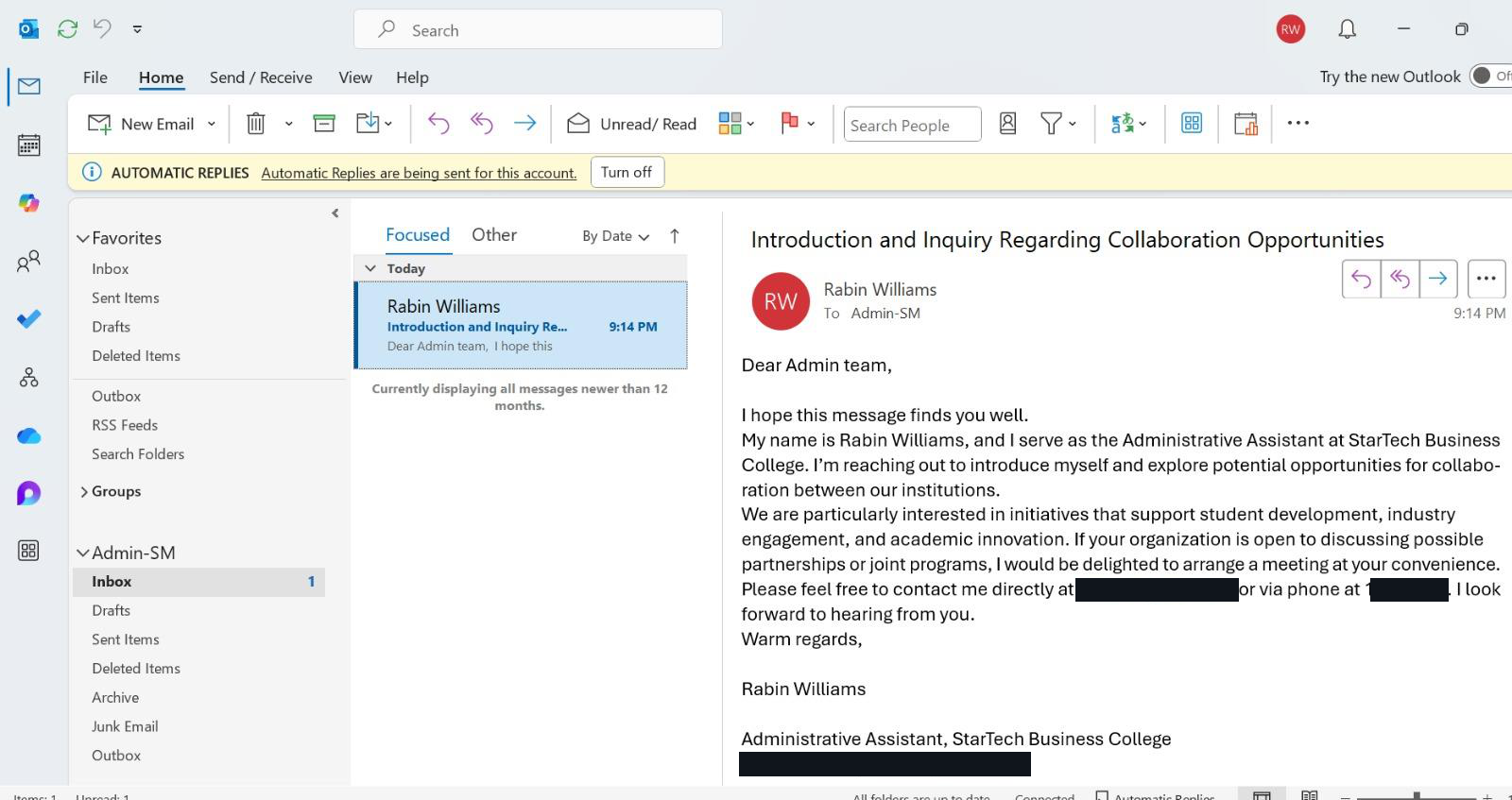
Shared mailbox working — Rabin Williams sends a test email to Admin-SM; the message arrives in the shared inbox confirming end-to-end mail flow
Microsoft 365 — Distribution Groups
Distribution lists (DLs) were created for each department so staff can reach an entire team with a single email address. Seven distribution groups were configured:
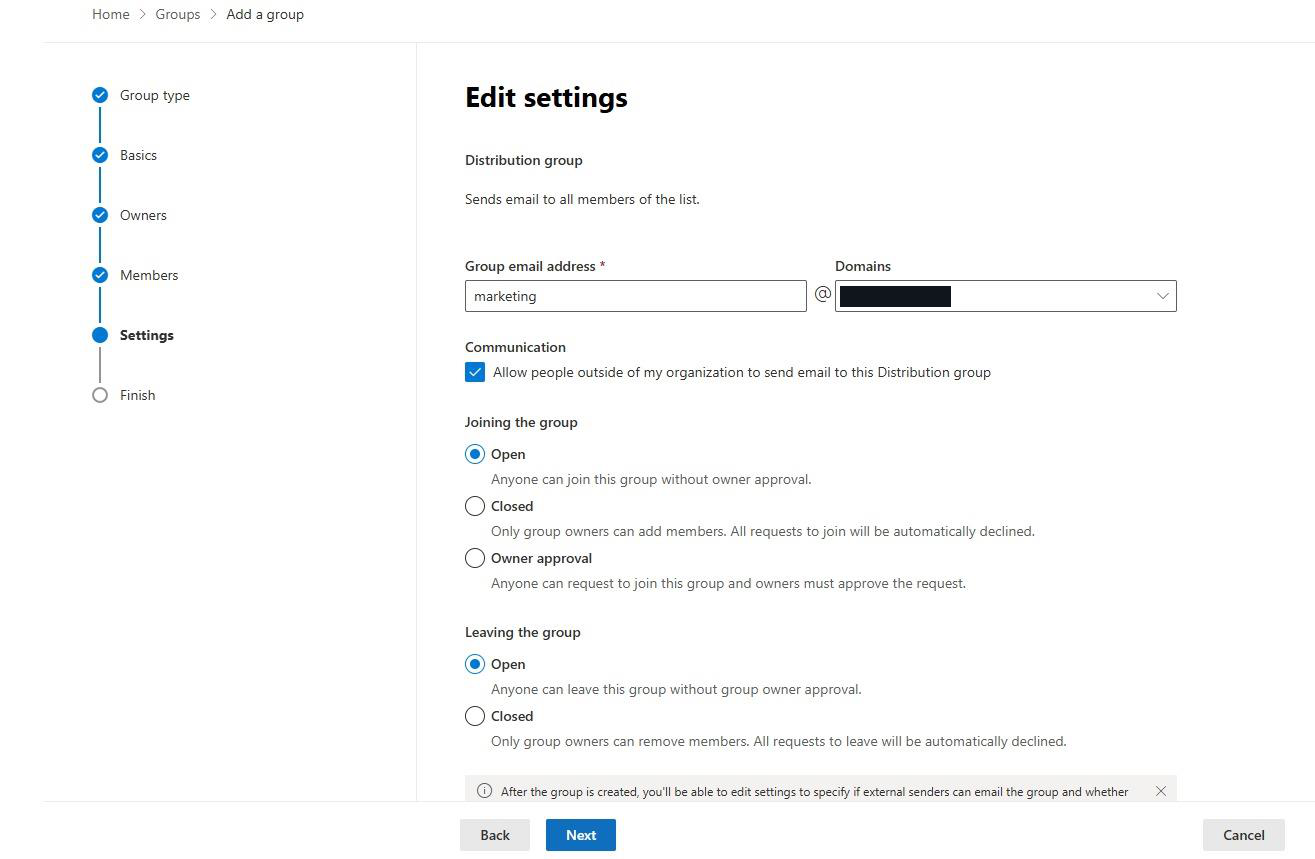
Creating the Marketing distribution group — address marketing@example.com, external senders allowed so clients can reach the team directly
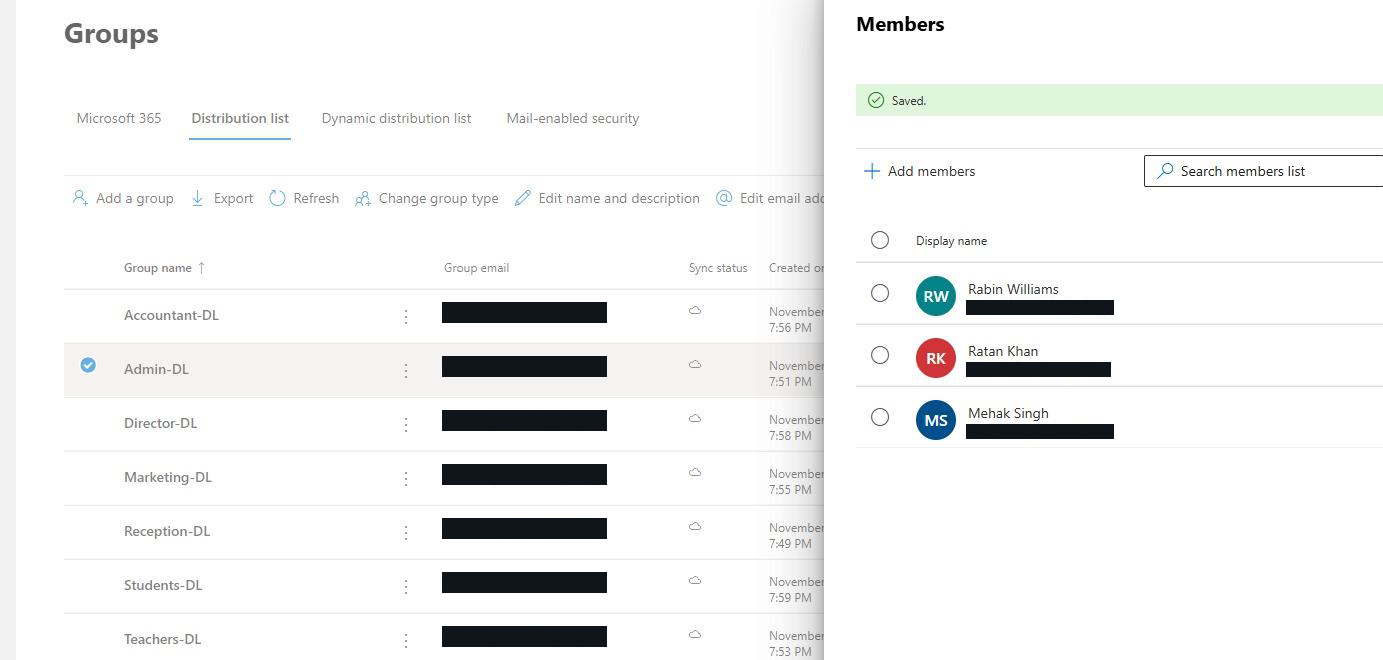
All seven distribution lists created — Accountant-DL, Admin-DL, Director-DL, Marketing-DL, Reception-DL, Students-DL, Teachers-DL. Admin-DL members: Rabin Williams, Ratan Khan, Mehak Singh.
Microsoft 365 — Multi-Factor Authentication
MFA was enforced for all users via Microsoft Entra (formerly Azure AD). Per-user MFA was set to Enforced for every account in the tenant — requiring the Microsoft Authenticator app for all sign-ins.
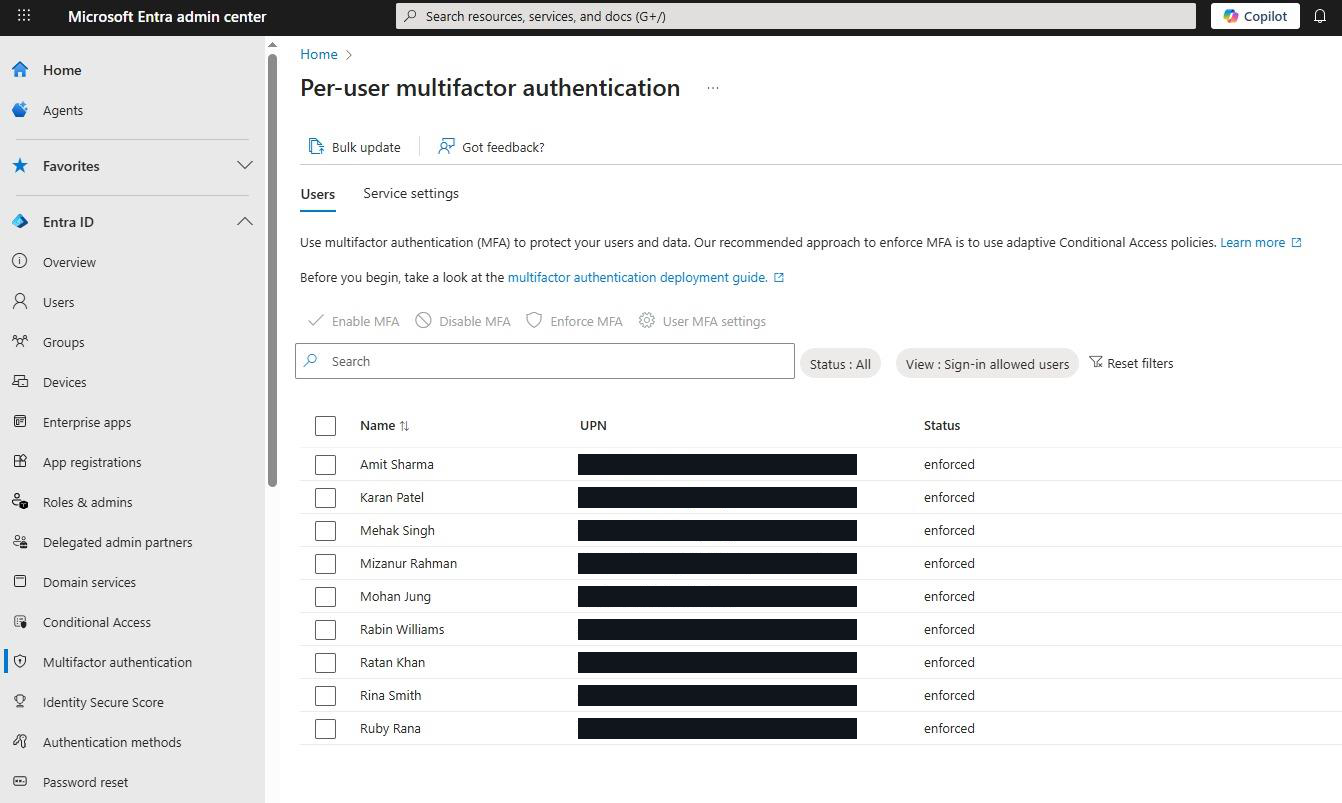
Per-user MFA in Microsoft Entra — all nine accounts (Amit Sharma, Karan Patel, Mehak Singh, Mizanur Rahman, Mohan Jung, Rabin Williams, Ratan Khan, Rina Smith, Ruby Rana) show status: Enforced
MFA was verified by signing in as Rabin Williams — the Authenticator app prompted for approval before access was granted:
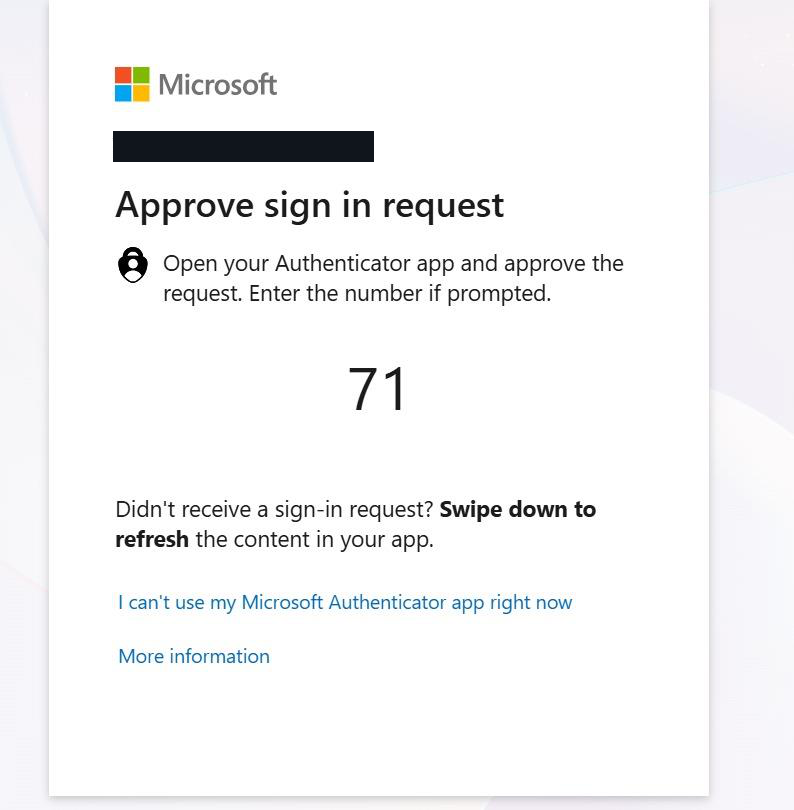
MFA confirmed working — Rabin Williams' sign-in triggers the Microsoft Authenticator "Approve sign in request" prompt with number matching (71). Access granted only after approval.
Microsoft 365 — Outlook Configuration
Each staff member's Outlook was connected to their M365 account. Additional per-user features were configured: email signatures, forwarding rules, and automatic replies.
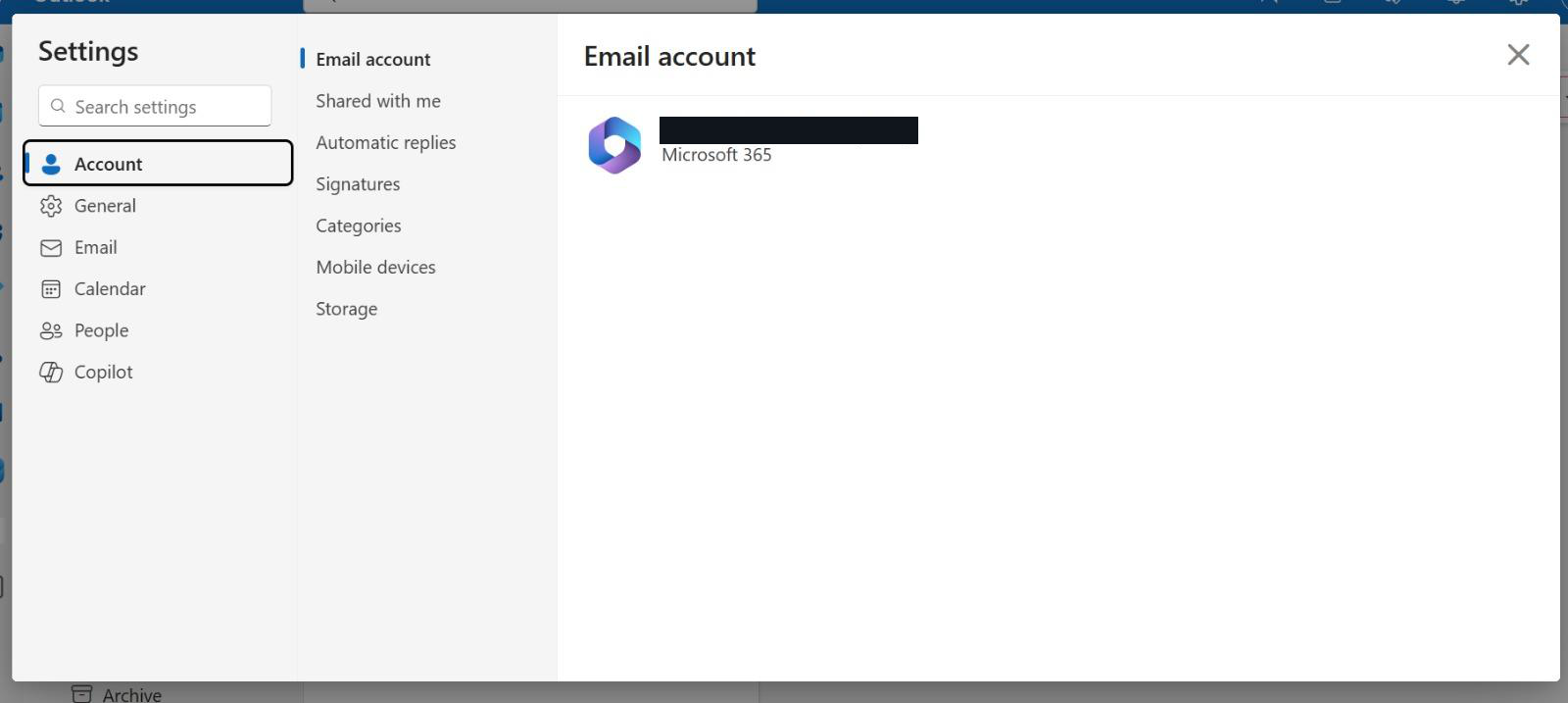
Outlook connected to Rabin.W@example.com — Microsoft 365 account authenticated, calendar and mail syncing
Office 365 — Endpoint Deployment
Microsoft 365 Apps (Word, Excel, PowerPoint, Outlook, Teams) were deployed to all staff machines by signing in with each user's M365 credentials. The installation pulls directly from Microsoft's CDN — no ISO, no manual package, no GPO deployment required.
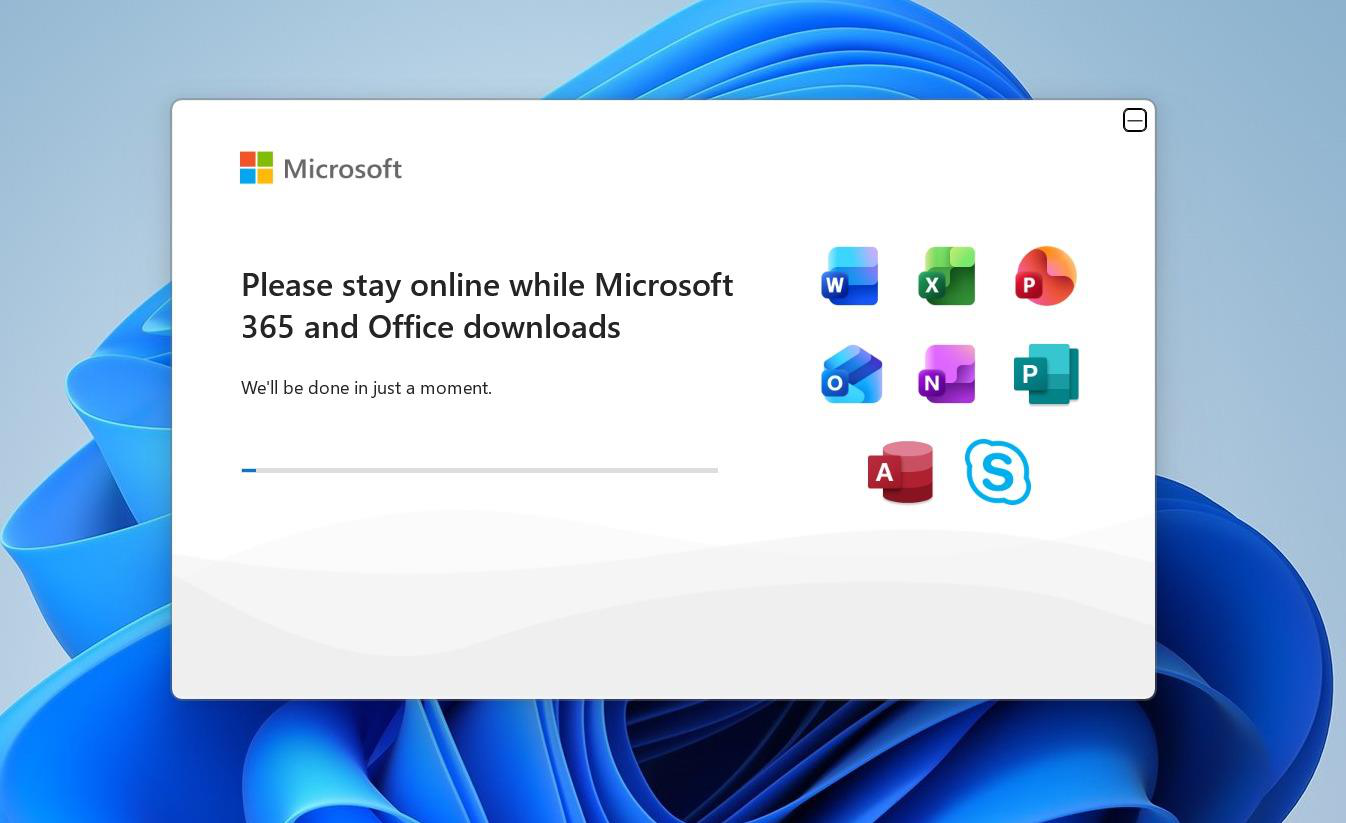
Office 365 installing on a staff endpoint — signing in with the M365 account automatically triggers the full suite download from Microsoft's CDN
Outlook — Email Signatures
Professional email signatures were configured for staff members in Outlook settings. The signature includes name, title, phone number, email address, and social media icons — automatically applied to all outgoing emails.
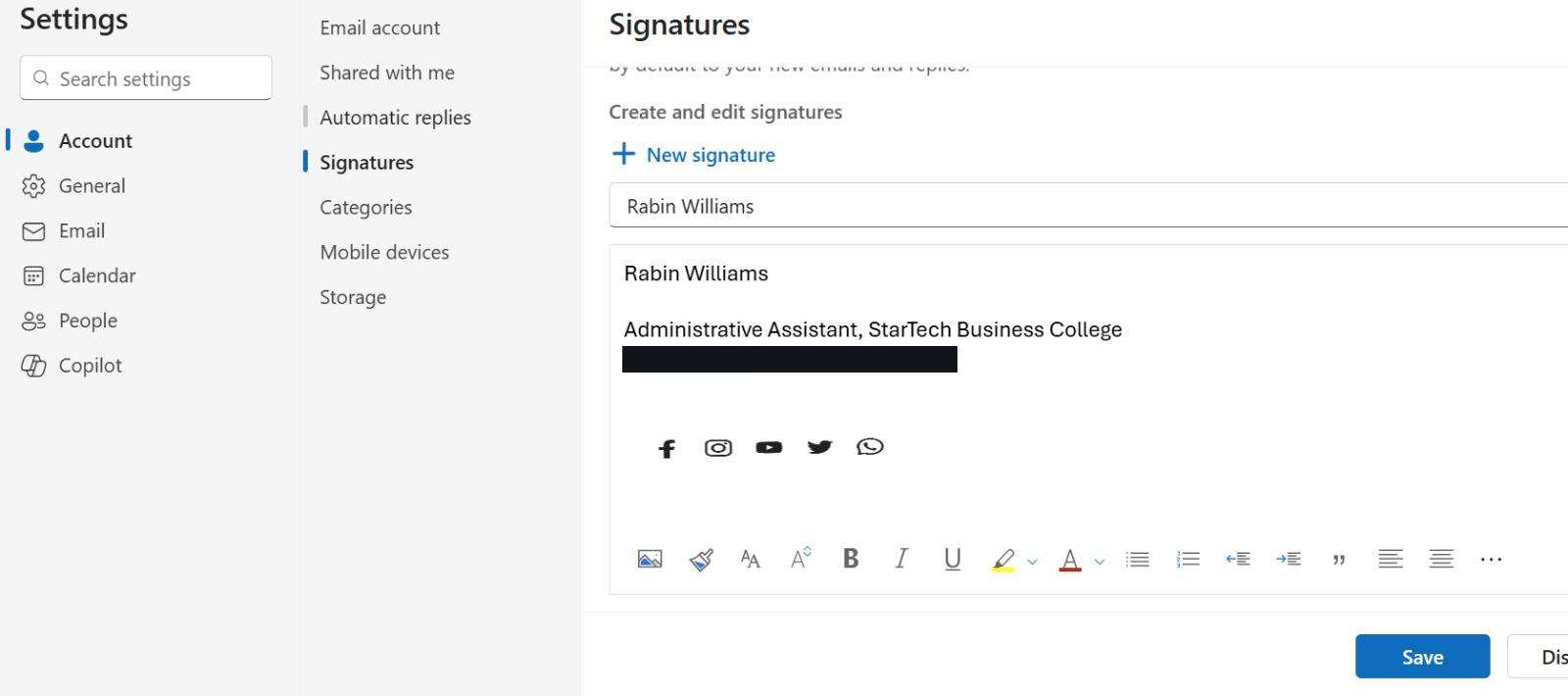
Rabin Williams' email signature — Administrative Assistant, StarTech Business College | rabin.w@stbc.example | social icons. Applied automatically to all outgoing emails.
Outlook — Email Forwarding
Email forwarding was enabled for selected accounts. Rabin Williams' account forwards all incoming mail to admin@example.com with a copy retained in the original mailbox — ensuring the shared admin team receives all relevant correspondence.
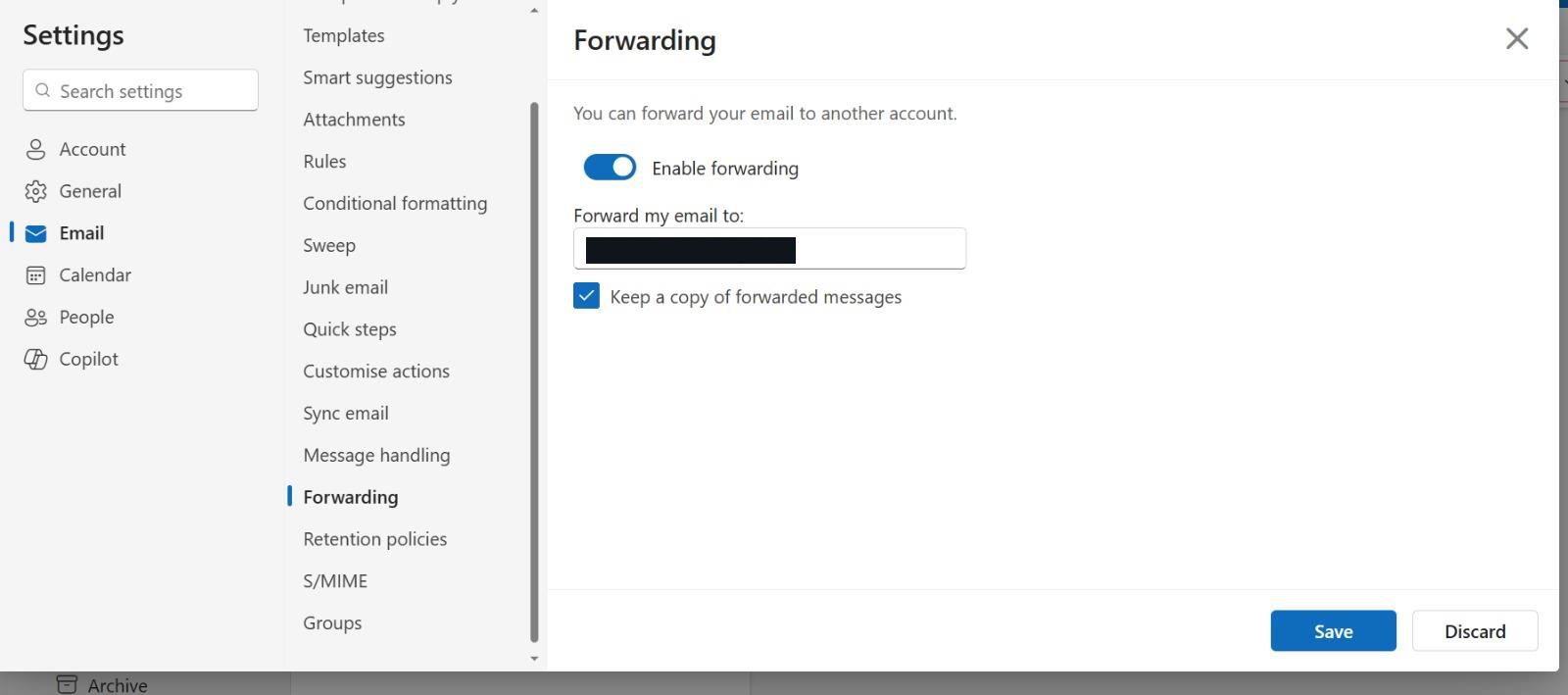
Email forwarding enabled — all of Rabin Williams' mail forwarded to admin@example.com, with "Keep a copy of forwarded messages" checked so nothing is lost
Outlook — Automatic Replies
Out-of-office automatic replies were configured for staff accounts. The message directs urgent matters to admin@stbc.example and is sent both internally and externally during absence periods.
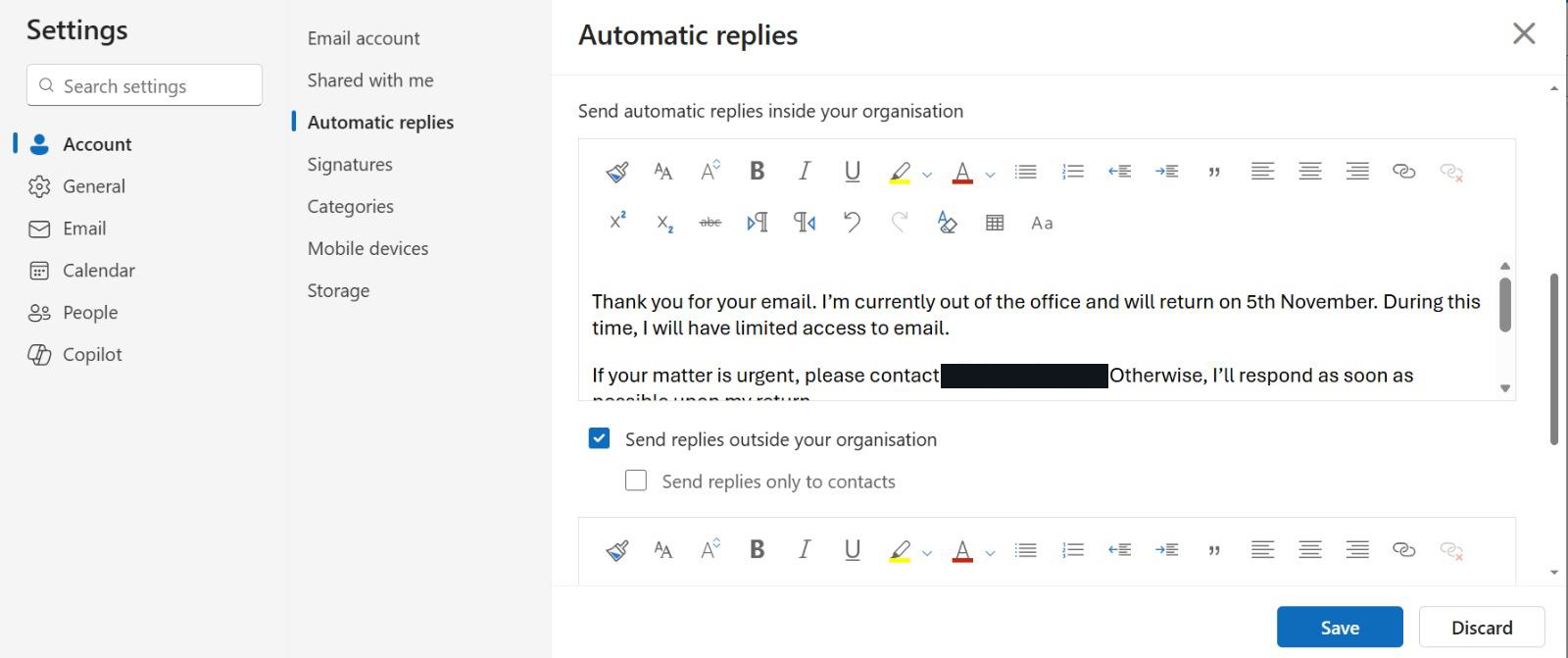
Automatic replies configured — "Thank you for your email. I'm currently out of the office and will return on 5th November. If your matter is urgent, please contact admin@stbc.example." Enabled for both internal and external senders.
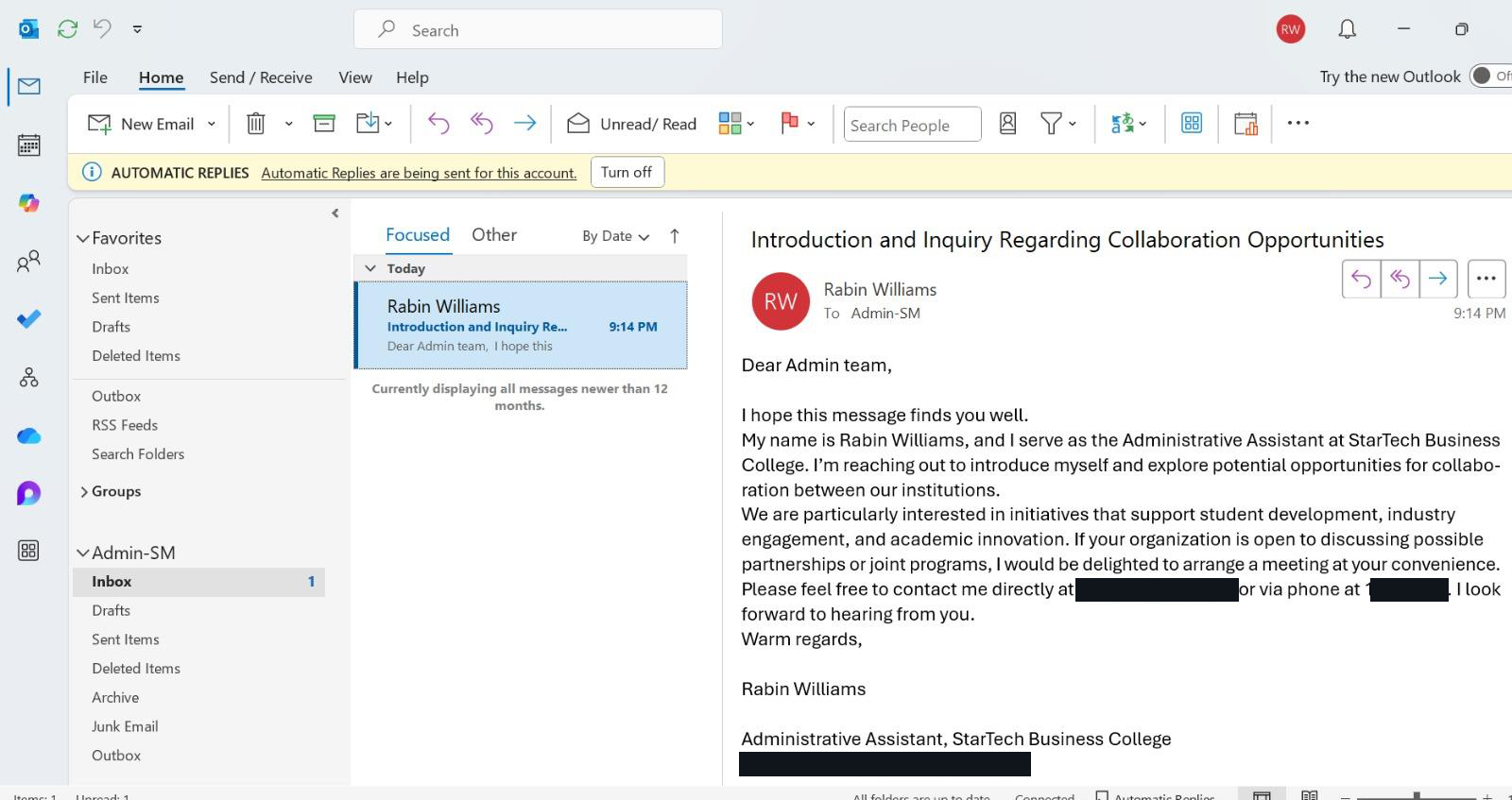
Admin-SM shared mailbox inbox — email from Rabin Williams is visible to all Admin-SM members, confirming end-to-end mail flow across the Microsoft 365 tenant
User Accounts Summary
All staff accounts were provisioned in both Active Directory (STBC.LOCAL) and Microsoft 365 (example.com). All accounts started with a temporary initial password — users required to change at first login.
| Name | Username | Department | Role |
|---|---|---|---|
| Rina Smith | Rina.S | Reception | Receptionist |
| Mehak Singh | Mehak.S | Admin | Admin Officer |
| Rabin Williams | Rabin.W | Admin | Administrative Assistant |
| Amit Sharma | Amit.S | Teachers | Teacher |
| Karan Patel | Karan.P | Teachers | Teacher |
| Mohan Jung | Mohan.J | Marketing | Marketing Officer |
| Ruby Rana | Ruby.R | Accountant | Accountant |
| Ratan Khan | Ratan.K | Director | Director |
Additional Recommendations
1. Backup Strategy — 3-2-1 Rule
Implement the 3-2-1 backup strategy: 3 copies of data, on 2 different media types, with 1 copy stored offsite. Windows Server Backup handles daily local backups to an attached drive; Azure Backup or a third-party cloud solution covers the offsite copy. This ensures recovery from both hardware failure and ransomware.
2. Endpoint Security
Deploy enterprise endpoint detection and response (EDR) across all 68 machines. Recommended solutions: SentinelOne or CrowdStrike Falcon — both provide AI-powered threat detection, ransomware rollback, and centralised management. Microsoft Defender (included with M365 Business Premium) is a viable starting point before budget allows for a dedicated EDR platform.
3. Hardware Maintenance Budget
Allocate 15–20% of the initial hardware cost annually for maintenance, repairs, and planned replacement cycles. With $160,995.72 invested in hardware, this equates to approximately $24,000–$32,000 per year — covering warranty extensions, component failures, and scheduled hardware refreshes.
Financial Summary
| Category | Amount (AUD) |
|---|---|
| Total Initial Investment (hardware + software) | $160,995.72 |
| Ongoing Monthly Cost (M365 licences + internet) | $569.60 |
Conclusion
This project delivered a complete, production-ready IT infrastructure for StarTech Business College's Sydney CBD campus. Every component — from the physical network through to user accounts and cloud services — was designed, deployed, and tested end-to-end.
The infrastructure is secure, scalable, and ready to support STBC's growth: Active Directory provides a single point of identity management, Group Policy enforces security baselines across all machines, Microsoft 365 enables cloud collaboration for all staff, and a robust extended-star network supports 70+ concurrent users across wired and wireless connections.
Total initial investment: $160,995.72 AUD | Ongoing monthly cost: $569.60
← All postsThis project covers core skills examined in CompTIA Server+, Microsoft MS-102 (Microsoft 365 Administrator), AZ-800 (Administering Windows Server Hybrid Core Infrastructure), and CompTIA Network+. Building a complete end-to-end deployment like this is the fastest way to turn exam theory into practical, demonstrable experience.